Introduction
This article explains how to enable View-Only Menu Mode for QR Code Dine-In.
When this option is enabled, customers can scan the QR code to view the online menu only, without placing orders or making payments.
You will learn where to turn on the setting, what customers will see, and how this affects the ordering flow.
Version Support
Supported Version: POS Version 2026.05.21 or later
Applicable Modules: BLogic View, QR Code Dine-In
ℹ️ Note:
If you do not see the QR Code Dine-In setting, please contact Support to confirm that your store is on a supported version.
Table of Contents
- Before You Start
- Open QR Code Dine-In Configuration
- Enable View-Only Menu Mode
- What Customers Will See
- How to Turn Ordering Back On
- FAQ
1. Before You Start
Before enabling this setting, make sure you have access to BLogic View and permission to update store configurations.
This feature is useful when you want customers to scan a QR code and browse the menu only, without allowing them to submit orders or payments from the QR menu.
⚠️ Important:
This setting applies only to QR Code Dine-In. It does not affect Pickup or Delivery Online Ordering.
2. Open QR Code Dine-In Configuration
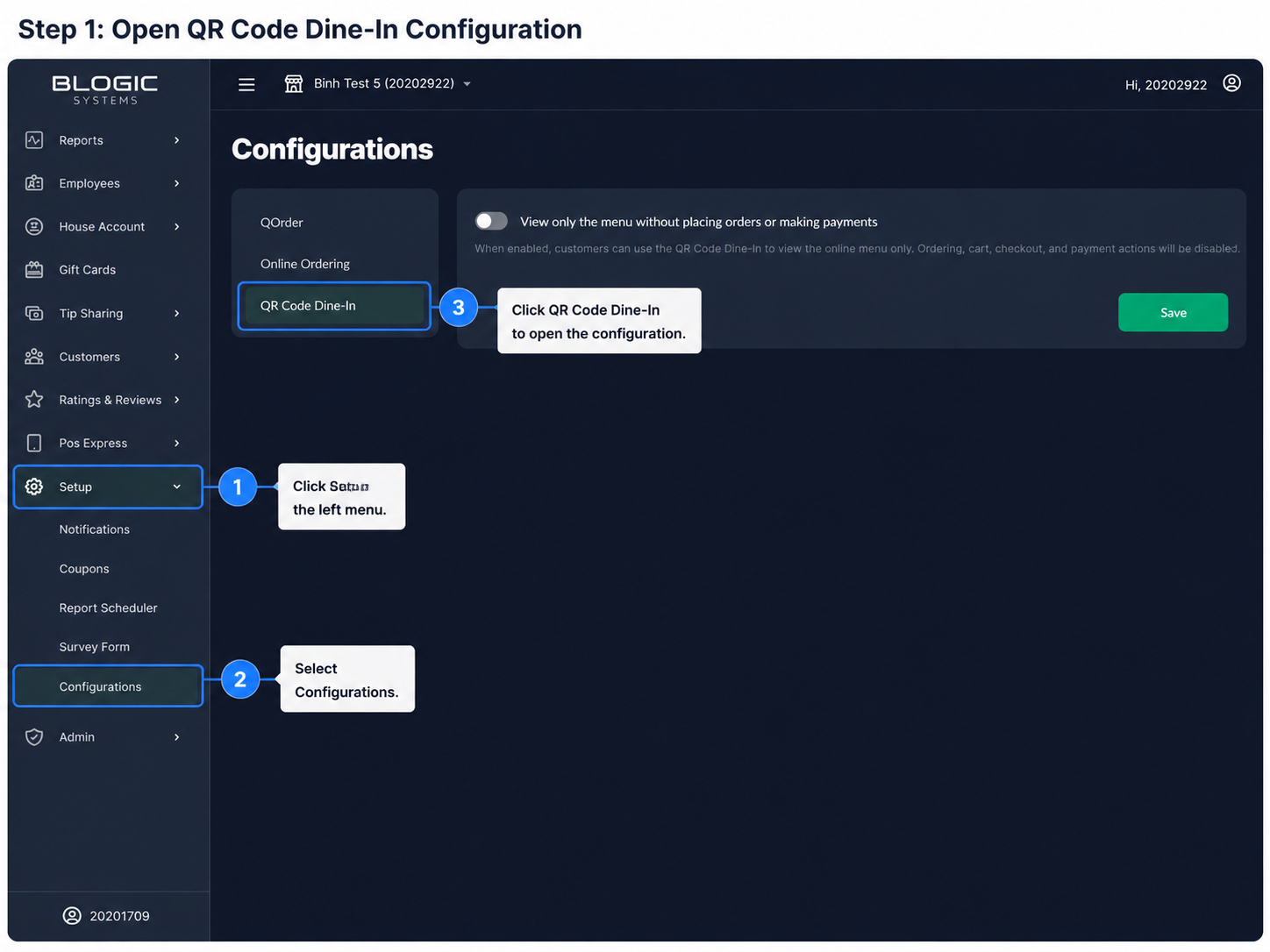
- Log in to BLogic View.
- Go to Setup.
- Select Configurations.
- Open the QR Code Dine-In tab.
3. Enable View-Only Menu Mode
- Find the option:
View only the menu without placing orders or making payments - Turn the option ON.
- Click Save.
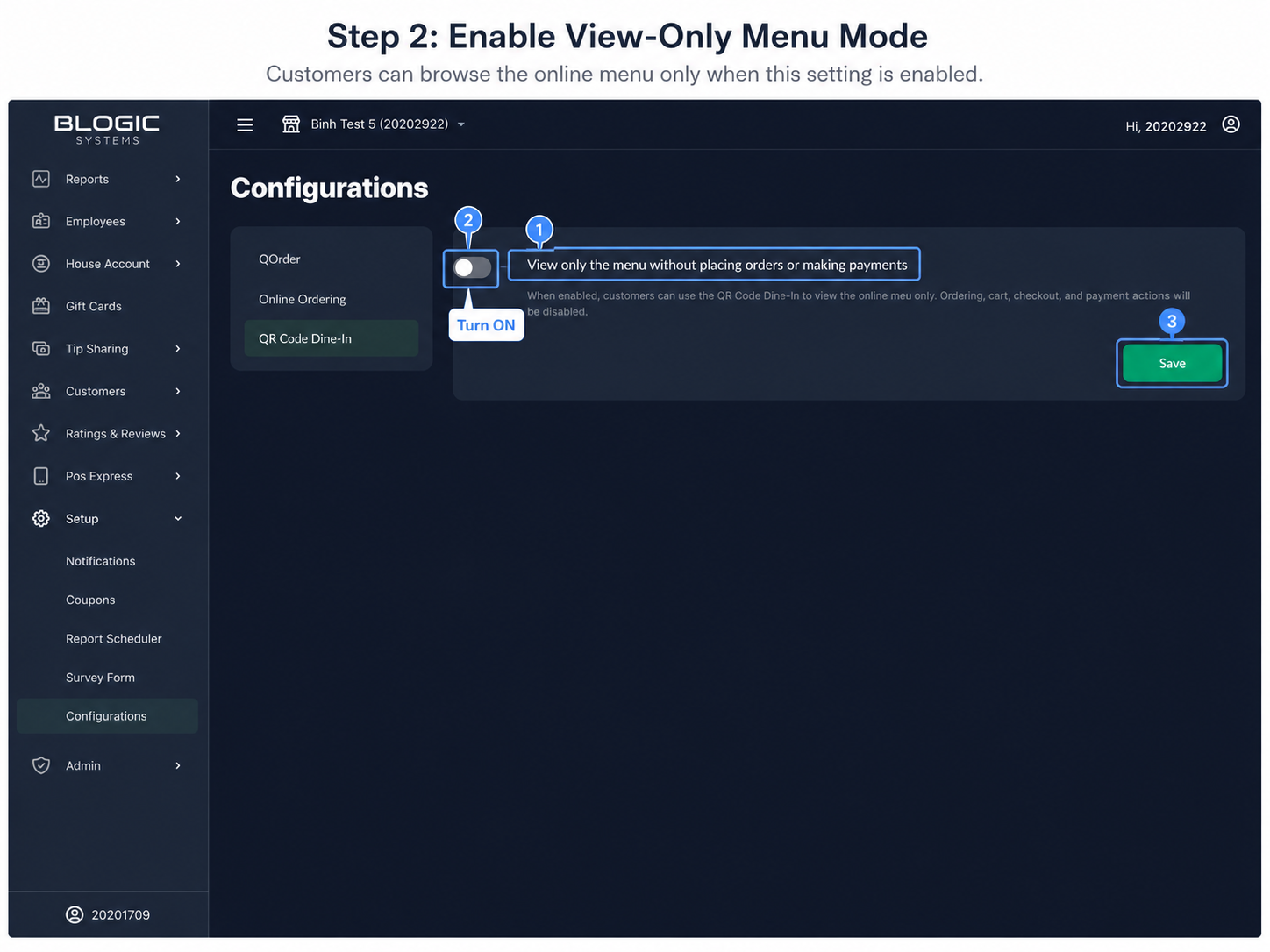
When enabled, customers can use the QR Code Dine-In to view the online menu only.
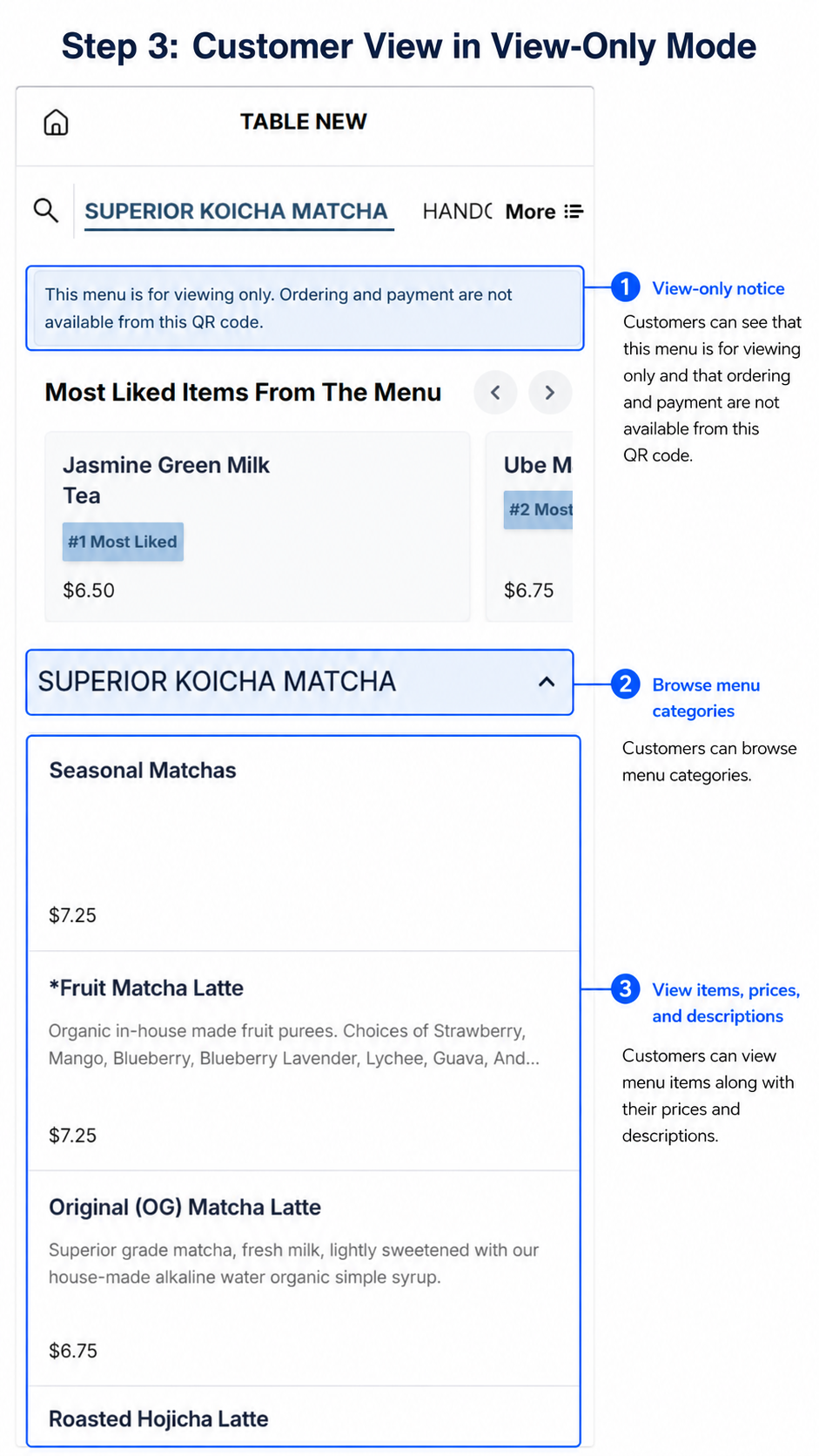
They can browse categories, items, prices, and descriptions, but cannot add items to cart, place orders, checkout, or make payments.
✅ Tip:
Use this option if your store wants QR codes for menu browsing only.
4. What Customers Will See
When View-Only Menu Mode is enabled, customers can still:
- View menu categories
- View menu items
- View item prices
- View item descriptions
- Browse the online menu from the QR code
Customers cannot:
- Add items to cart
- Change quantity for ordering
- Open cart for checkout
- Place an order
- Make a payment
The menu may show a message such as:
This menu is for viewing only. Ordering and payment are not available from this QR code.
⚠️ Important:
No cart, order, ticket, checkout, or payment will be created while View-Only Menu Mode is enabled.
5. How to Turn Ordering Back On
- Go back to BLogic View > Setup > Configurations.
- Open the QR Code Dine-In tab.
- Turn OFF:
View only the menu without placing orders or making payments - Click Save.
After the setting is turned off, QR Code Dine-In will return to the normal ordering flow.
Customers will be able to add items to cart, checkout, and make payments again.
6. FAQ
1. Does this setting affect Pickup or Delivery Online Ordering?
No. This setting only affects QR Code Dine-In. Pickup and Delivery Online Ordering will continue to work normally.
2. Can customers still see prices and descriptions?
Yes. Customers can still view menu items, prices, descriptions, and categories.
3. Will the system create a ticket when View-Only Mode is enabled?
No. The system will not create a cart, order, ticket, checkout, or payment when this mode is enabled.
4. What should I do if I do not see the QR Code Dine-In tab?
Please contact Support to confirm your POS version and feature availability.
5. Can I turn ordering back on later?
Yes. You can turn the setting OFF at any time to restore normal QR Code Dine-In ordering.