Introduction
This article explains how to set up the Auto close Signature page after option on the Kiosk.
This feature helps the Signature page close automatically if the customer does not sign within the configured time.
Version Support
| Item | Support |
|---|---|
| Release Version | 2026.05.21 |
| Module | Kiosk |
| Setting Location | Kiosk > Settings > Configurations |
| Feature | Auto close Signature page after |
ℹ️ If you do not see this option, please contact Support for assistance.
Table of Contents
1. What This Feature Does
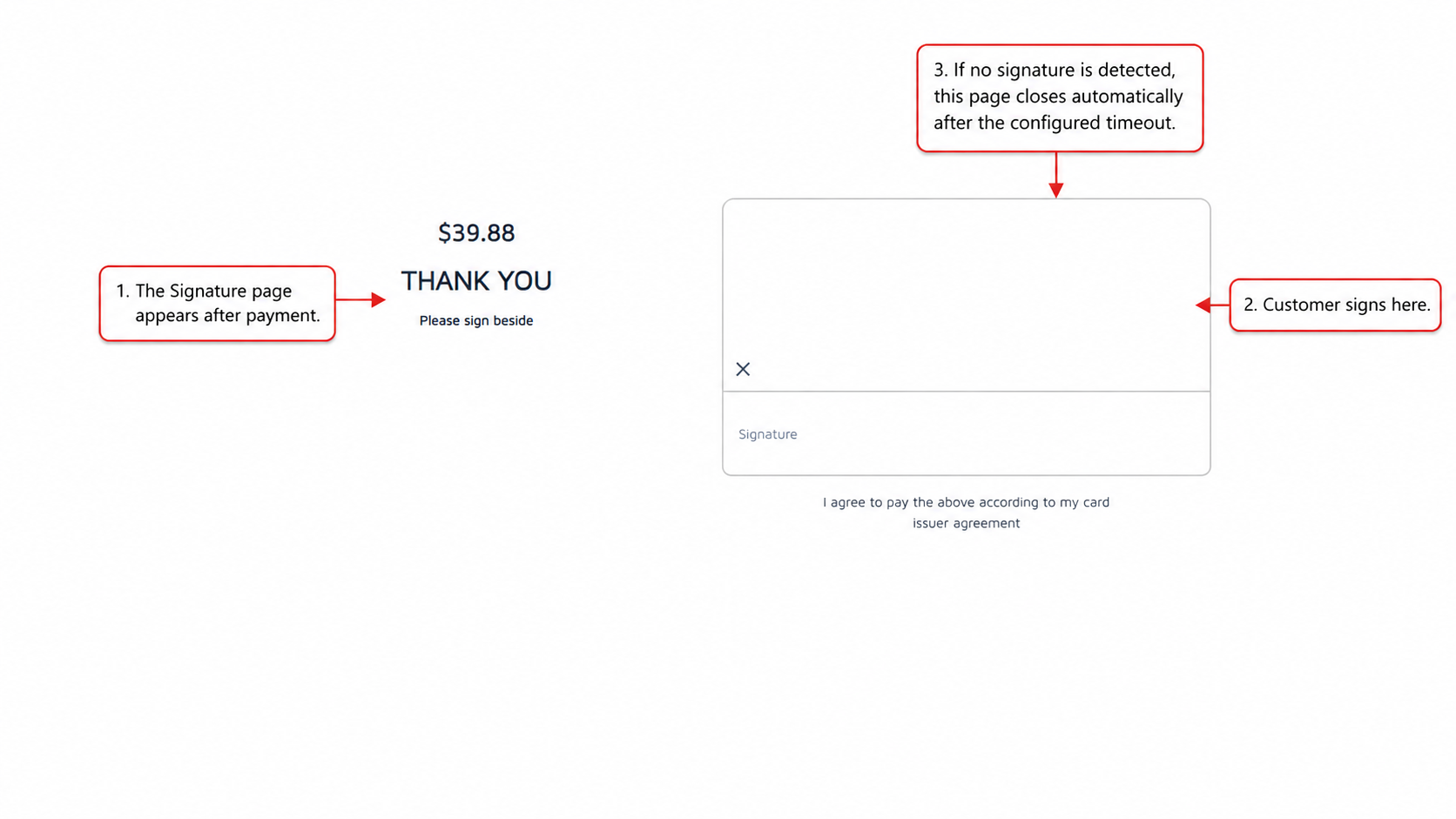
When Signature Required is enabled, the Kiosk may show a Signature page after payment.
If the customer does not sign, the Auto close Signature page after setting will automatically close the Signature page after the selected time.
This helps prevent the Kiosk from staying on the Signature page and blocking the next customer.
2. How to Configure It
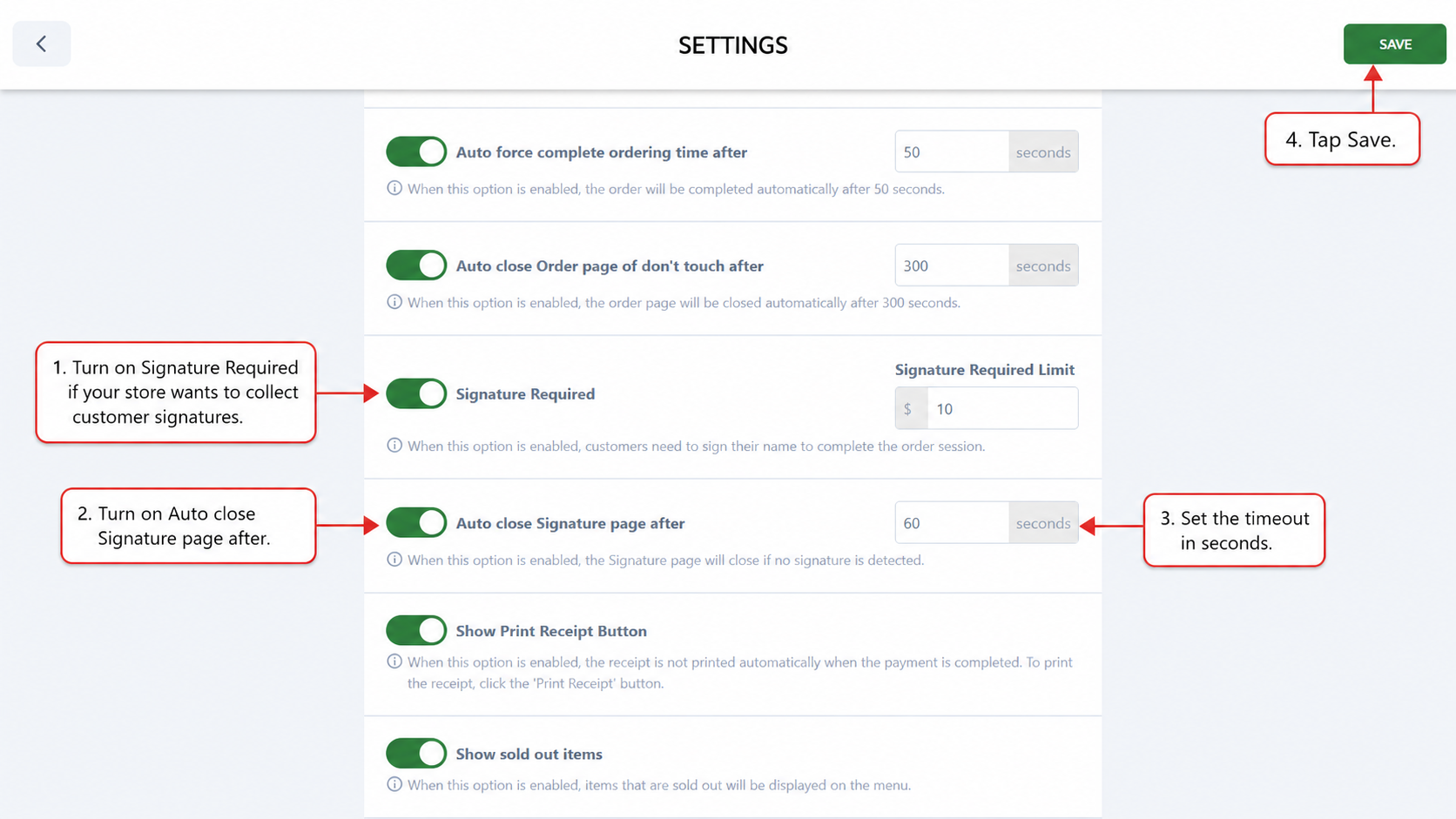
- On the Kiosk, open Settings.
- Go to Configurations.
- Turn on Signature Required.
- Set the Signature Required Limit amount.
- Turn on Auto close Signature page after.
- Enter the timeout value in seconds.
- Tap Save.
Recommended value: 60 seconds
ℹ️ If Signature Required is turned off, the Kiosk will hide:
- Signature Required Limit
- Auto close Signature page after
3. How It Works
After payment, if a signature is required:
- The Kiosk shows the Signature page.
- If the customer signs, the order continues normally.
- If no signature is detected before the timeout, the Signature page closes automatically.
⚠️ This timeout does not void, cancel, or reverse the payment.
4. FAQ
Why can’t I see “Auto close Signature page after”?
This option only appears when Signature Required is enabled.
What happens if the customer signs before the timeout?
The Kiosk continues the normal order completion flow.
What happens if the customer does not sign?
The Signature page closes automatically after the configured timeout.
Will this cancel the payment?
No. The payment will remain approved if it was already completed.