Introduction
This article explains how to set up a Date & Time schedule for a prep printer. You will learn how to control when a prep printer is active so kitchen tickets only print during the configured days and times.
By default, prep printers are available 24/7 unless you change the schedule.
Version Support
POS version: 2026.05.26 or later
ℹ️ If you do not see the Date & Time setting, please contact Support to confirm your software version.
Table of Contents
- What the Date & Time Setting Does
- Configure a Prep Printer Schedule
- How Prep Printing Works with the Schedule
- Best Practices
- FAQ
1. What the Date & Time Setting Does
The Date & Time setting allows you to control when a prep printer rule is active.
For example, you can set a prep printer to print only:
- On specific days, such as Monday to Friday
- During specific hours, such as 8:00 AM to 5:00 PM
- All day, every day, using the default 24/7 setup
When an order is sent to the kitchen, the system checks the current date and time before printing.
⚠️ The system uses the time when the print action happens, not the time when the ticket was created.
2. Configure a Prep Printer Schedule
- Log in to POS Dashboard.
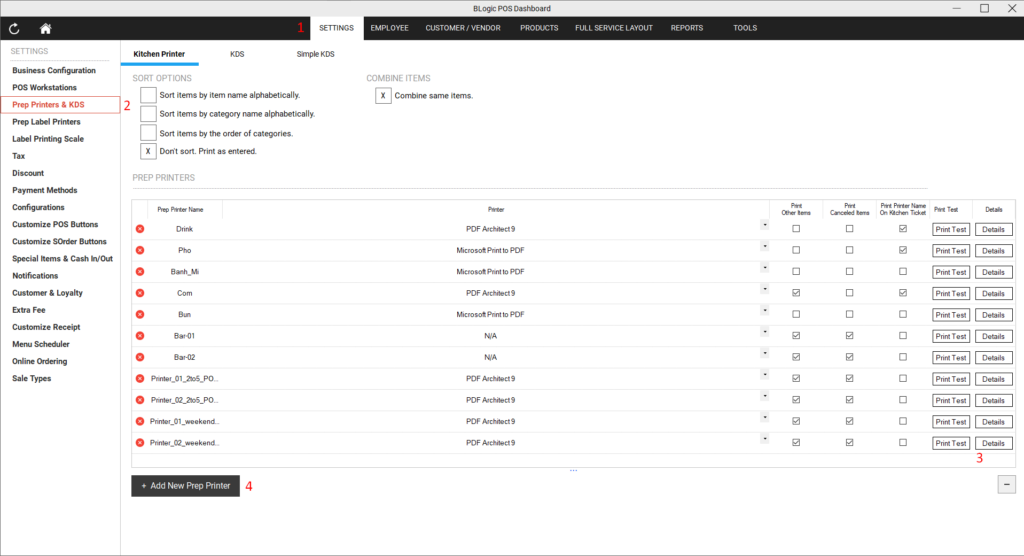
- Go to: Settings > Prep Printers & KDS
- Open the Kitchen Printer tab.
- Add a new prep printer or click Details on an existing prep printer.
- Go to the Schedule section.
- Select the days when this prep printer should be active. Example:
- Mon
- Tue
- Wed
- Thu
- Fri
- Set the Start time and End time. Example:
- Start time: 08:00 AM
- End time: 05:00 PM
- Click Save.
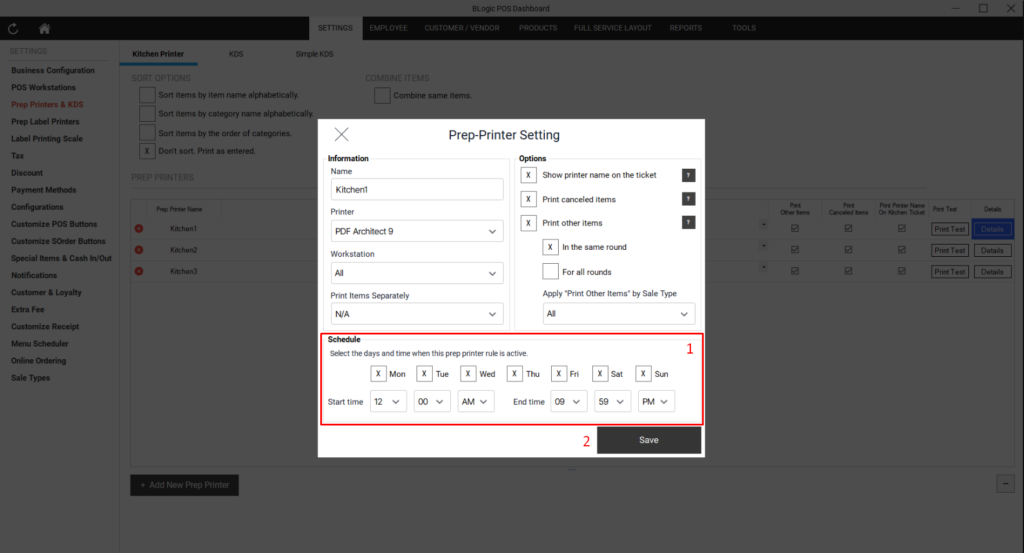
ℹ️ After you save the setting, the configuration is applied automatically. You do not need to refresh or restart the POS.
✅ Tip: Keep the schedule as 24/7 if the prep printer should always be available.
3. How Prep Printing Works with the Schedule
After the schedule is saved, the system will automatically check the prep printer schedule when printing kitchen items.
The item will print only when:
- The item matches the prep printer setup
- The category or item rule matches
- The workstation rule matches, if configured
- The current day and time match the printer schedule
If the current time does not match the configured schedule, the prep printer will not print.
ℹ️ This setting does not change other prep printer rules. Existing item, category, workstation, and print option settings continue to work as before.
4. Best Practices
✅ Use clear schedules for printers that are only needed during certain shifts.
Example:
- Breakfast printer: 6:00 AM to 11:00 AM
- Lunch printer: 11:00 AM to 3:00 PM
- Dinner printer: 3:00 PM to 10:00 PM
✅ Review the schedule when a prep printer does not print as expected.
The printer may be correctly configured, but inactive because the current time is outside the schedule.
⚠️ Make sure the selected days and time range are correct before saving.
If no day or incorrect time is selected, the printer may not print during the expected period.
5. FAQ
Why did my kitchen item not print?
The current date and time may not match the prep printer schedule. Check the printer schedule in Back Office and confirm the printer is active at the time of printing.
Does the system check the ticket creation time or the print time?
The system checks the time when the print action happens. It does not use the time when the ticket was created.
What is the default schedule?
The default Date & Time setting is 24/7, meaning the prep printer is active all day, every day.
Does this change my existing item or category printer setup?
No. This setting only adds a Date & Time check. Existing printer rules for items, categories, workstation, and other options are not changed.
Does this affect KDS?
No. KDS is not impacted by this setting.
If you still need help, please contact Support for further assistance.