Introduction
This article explains how to map each Sales Type to a sales channel (In-Store or Online) using the Sales Type Channel Settings in BLogic View. Once configured, this mapping is applied across your Sales Summary Report, Excel/PDF exports, and scheduled reports — so your sales data is always grouped the way your business works.
Version Support
| Product / Module | Supported Version |
|---|---|
| BLogic View – Configurations | 2026.06.02 |
| Sales Summary Report | Updated in this release |
| Excel / PDF Export | Updated in this release |
| Report Scheduler | Updated in this release |
Note: If you do not see this option, please contact Support to confirm your store is on a supported version.
Table of Contents
- Open Sales Type Channel Settings
- Assign a Sales Type to a Channel
- Search and Filter Sales Types
- Reset All to Default
- View the Result in Sales Summary Report
- FAQ
Open Sales Type Channel Settings
Step 1: Navigate to the Settings page
- Log in to BLogic View.
- Go to Configurations > Report Settings.
- Locate the Sales Type Channel Settings section.
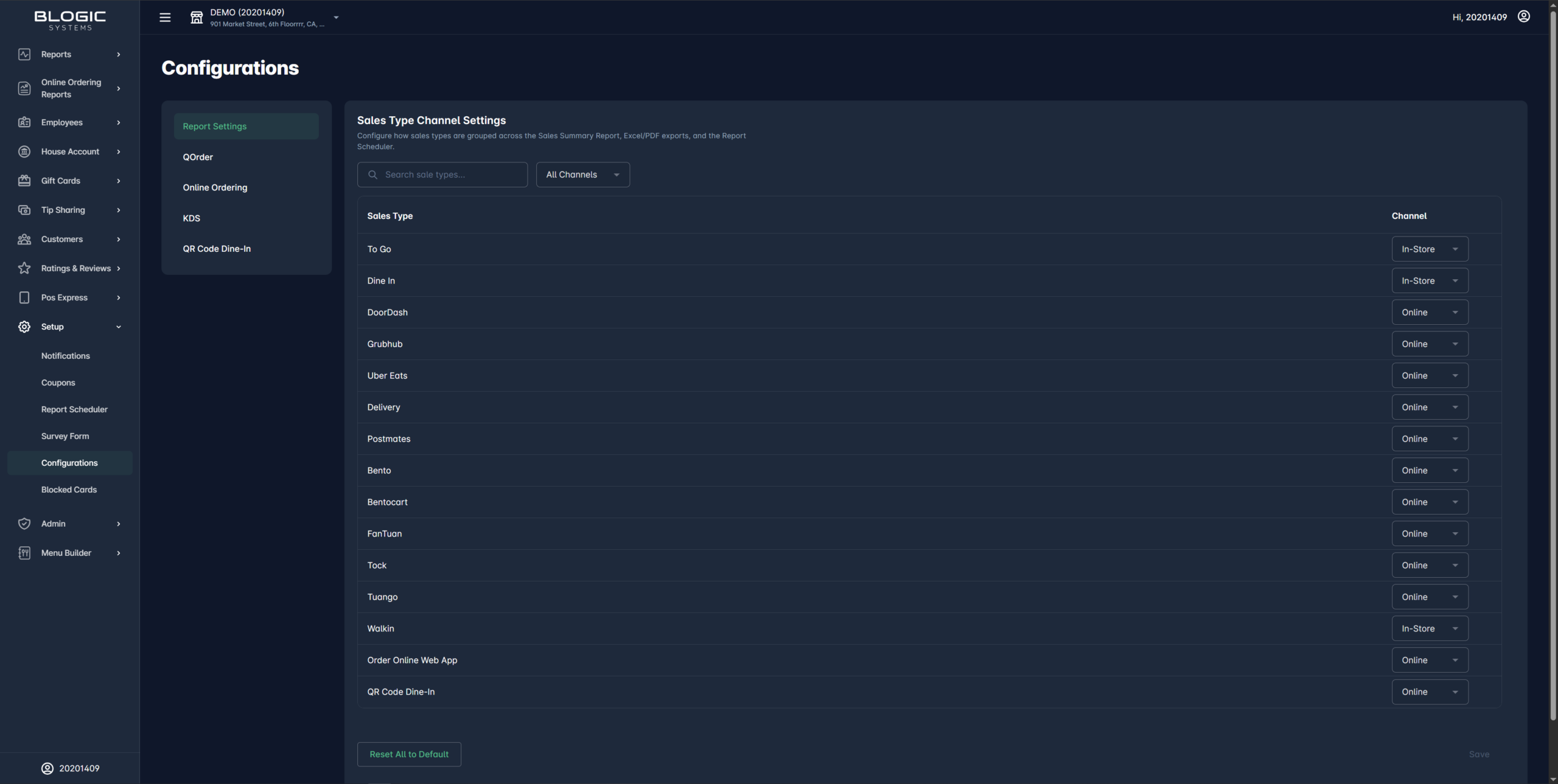
The page displays a table of all available Sales Types in your store, along with the currently assigned channel for each one.
Assign a Sales Type to a Channel
Step 1: Select a channel for a Sales Type
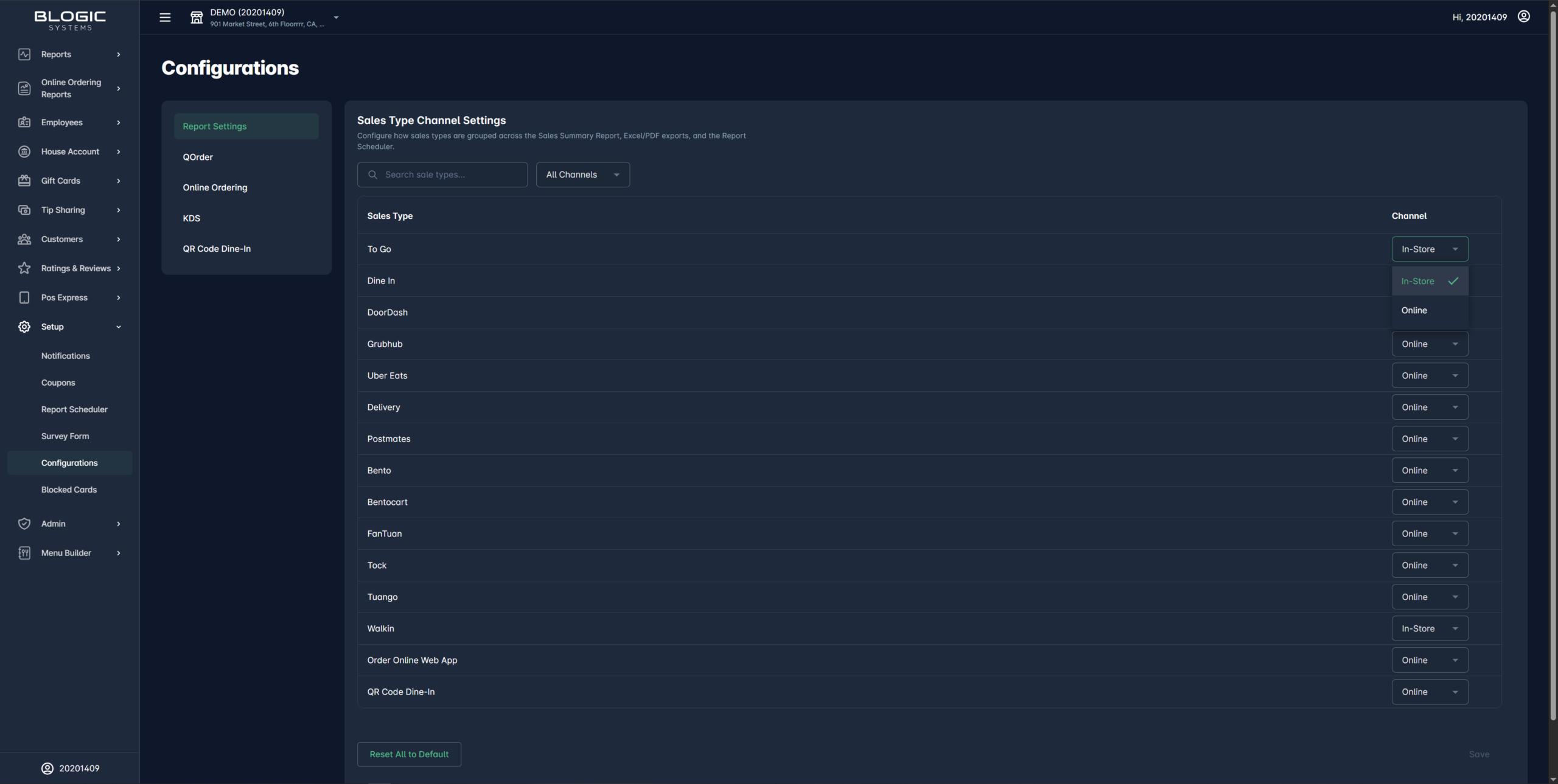
- In the Sales Type Channel Settings table, find the Sales Type you want to update.
- Click the Channel dropdown for that row.
- Select either In-Store or Online.
Step 2: Save your mapping
- After making your changes, click Save.
- A confirmation message will appear when the mapping has been saved successfully.
✅ Tip: Default mappings are already set for all Sales Types. You only need to change the ones that do not match your store’s setup.
⚠️ Warning: Updating the mapping may affect how past report views and exports appear when they are regenerated.
Search and Filter Sales Types
Step 1: Search by name
- In the Search box above the table, type all or part of a Sales Type name.
- The table will filter in real time to show only matching Sales Types.
Step 2: Filter by channel
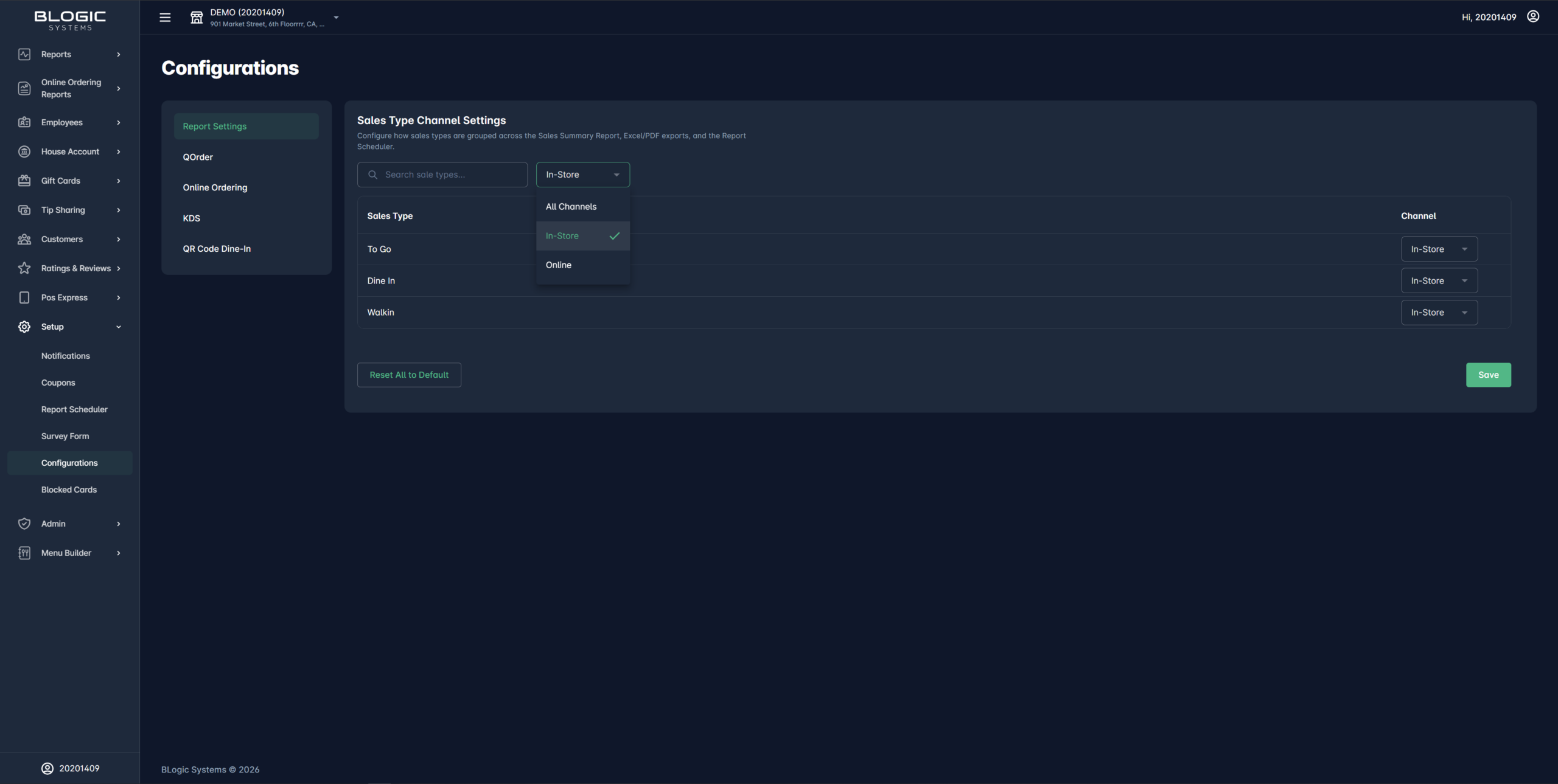
- Click the Channel Filter dropdown.
- Select one of the following options:
- All Channels – shows every Sales Type
- In-Store – shows only Sales Types mapped to In-Store
- Online – shows only Sales Types mapped to Online
Reset All to Default
Use this option to restore the original default channel mapping for all Sales Types.
Step 1: Reset the mapping
- Click the Reset All to Default button.
- A confirmation dialog will appear — click Confirm to proceed.
- All Sales Types will return to their default channel assignments.
ℹ️ Note: Default channel assignments are:
In-Store (default): To Go, Full Service, QR Code Dine-In, Walk-in, Kiosk
Online (default): DoorDash, GrubHub, Uber Eats, Delivery, Postmates, Bento, BentoCart, Phone App Pickup, Phone App Delivery, Web Order Pickup, Web Order Delivery
View the Result in Sales Summary Report
After saving your mapping, the Sales Summary Report will automatically group Sales Types using the configured channels.
Step 1: Open the Sales Summary Report
- Go to Sales Summary Report in BLogic View.
- Sales Types are now grouped under In-Store and Online sections based on your saved mapping.
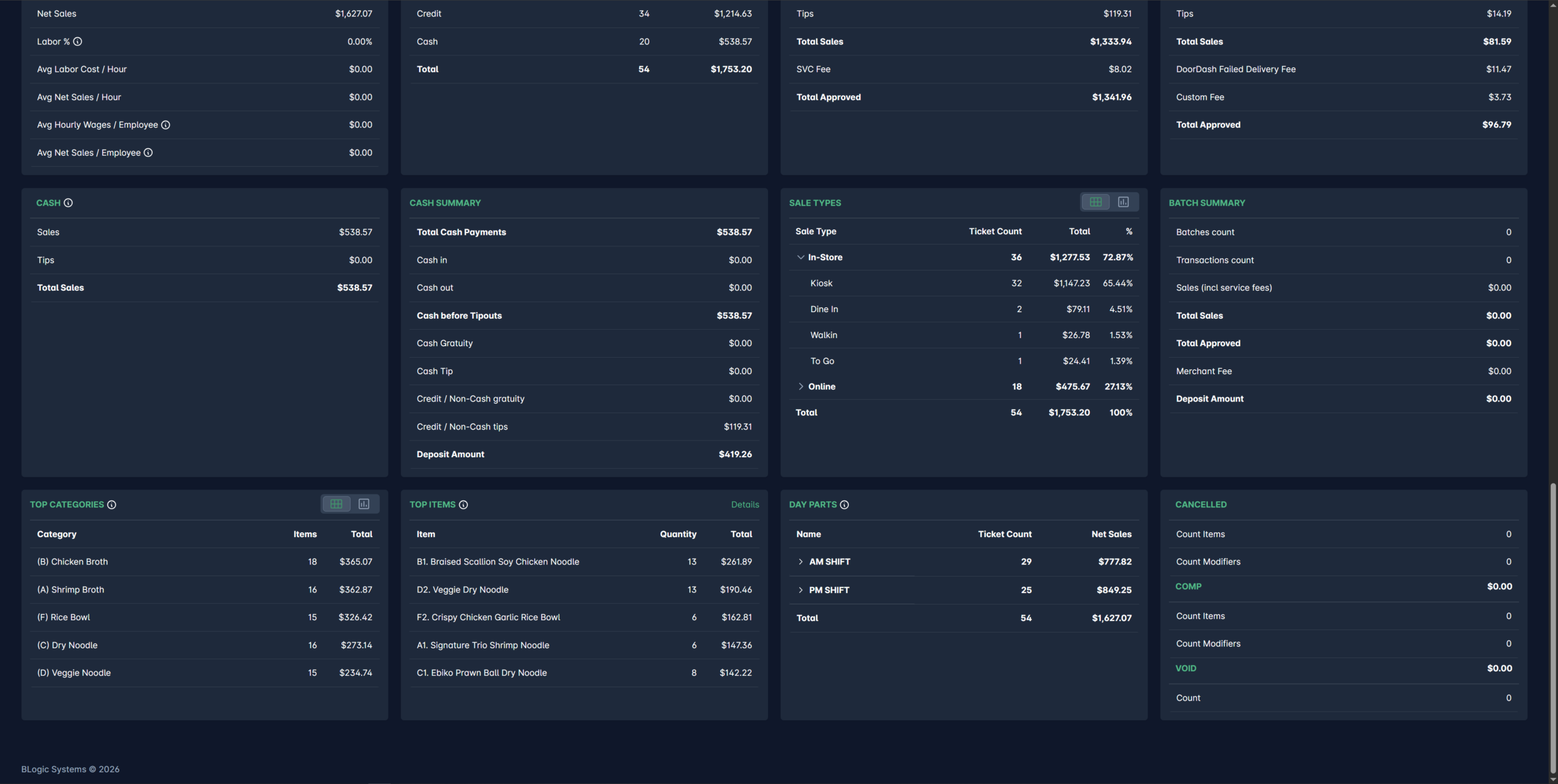
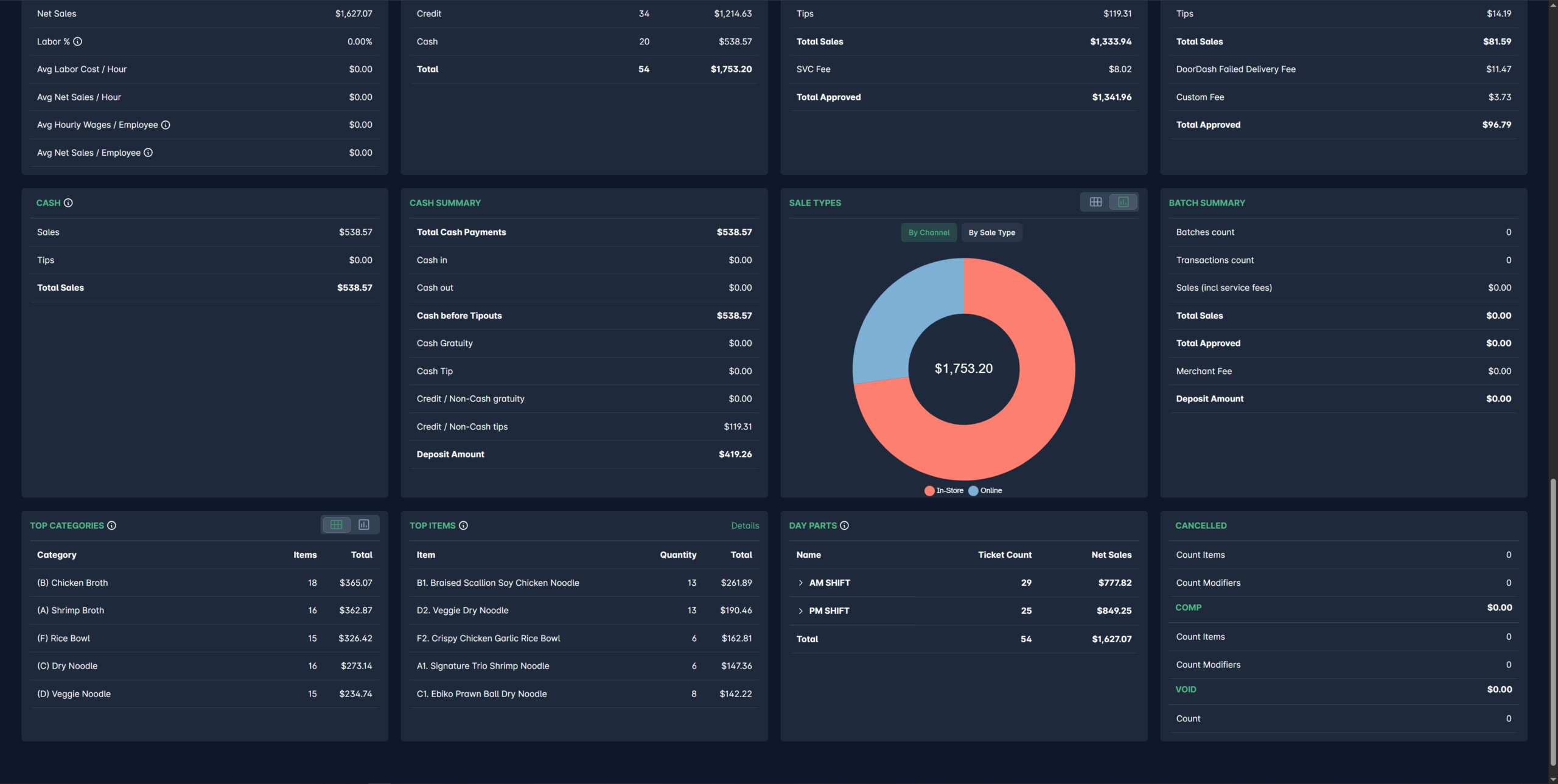
✅ Tip: Use the expand/collapse chevron on each channel group to show or hide the Sales Types within that group.
Step 2: Verify exports
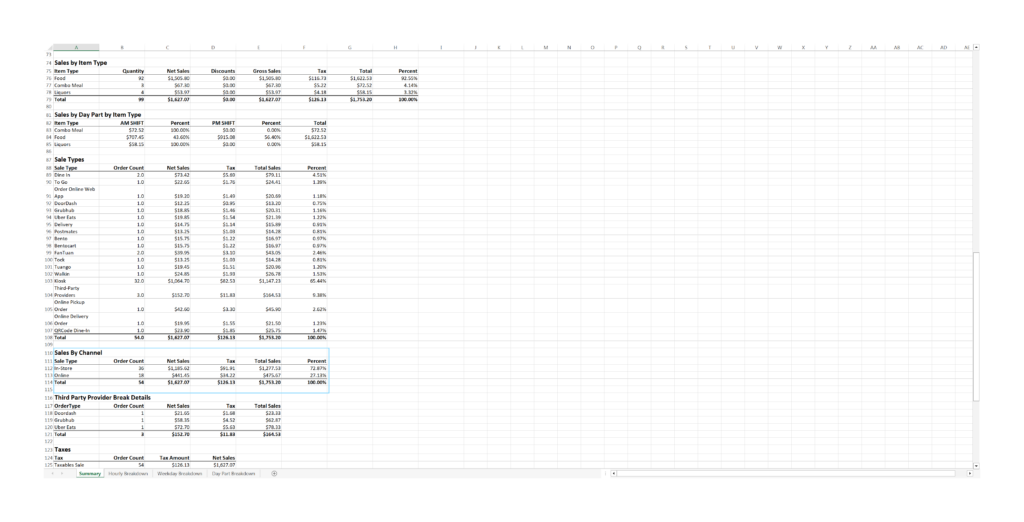
- When you export to Excel or PDF, the same channel grouping is applied.
- Scheduled reports will also use the saved mapping automatically.
FAQ
1. Why can’t I see the Sales Type Channel Settings? Your store may not be on a supported version, or your user role may not have permission to access Configurations. Please contact Support if the option is not visible.
2. Will changing the mapping affect my historical reports? Yes — when a past report is regenerated (e.g. via re-export or Report Scheduler), it will use the current saved mapping. Historical raw data is not changed, but how it is grouped will reflect the latest configuration.
3. Can I create a custom channel (other than In-Store or Online)? No. Only In-Store and Online channels are available. Custom channel creation is not supported in this release.
4. Does the mapping apply to all users at my store? Yes. The mapping is saved at the store level, so it applies to all users at your store.
5. What should I do if my Sales Types are not showing the correct grouping after saving? Check that you clicked Save after making changes, confirm your store is on a supported version, and contact Support for further assistance.
Closing
If you still need help, please contact Support for further assistance.