Introduction
This article explains how to use the FLSA Workweek option when exporting payroll data to ADP on the POS Dashboard. You will learn how to open the Report Designer, enable the Show FLSA Workweek option, and export employee payroll records split by Week 1 and Week 2. This feature is available to Managers and Owners and helps stores that require payroll data separated by workweek to meet FLSA and overtime requirements.
Version Support
| Product / Module | Supported Version |
|---|---|
| POS Dashboard | 2026.06.01 |
Note: If you do not see this option, please contact Support to confirm your store is on a supported version.
Table of Contents
- Access the Payroll Summary Report
- Configure the Report Designer
- Export to ADP with FLSA Workweek
- Understand the FLSA Workweek export format
- FAQ
Access the Payroll Summary Report
Step 1: Log in to POS Dashboard
- Open your browser and log in to POS Dashboard with your Manager or Owner account.
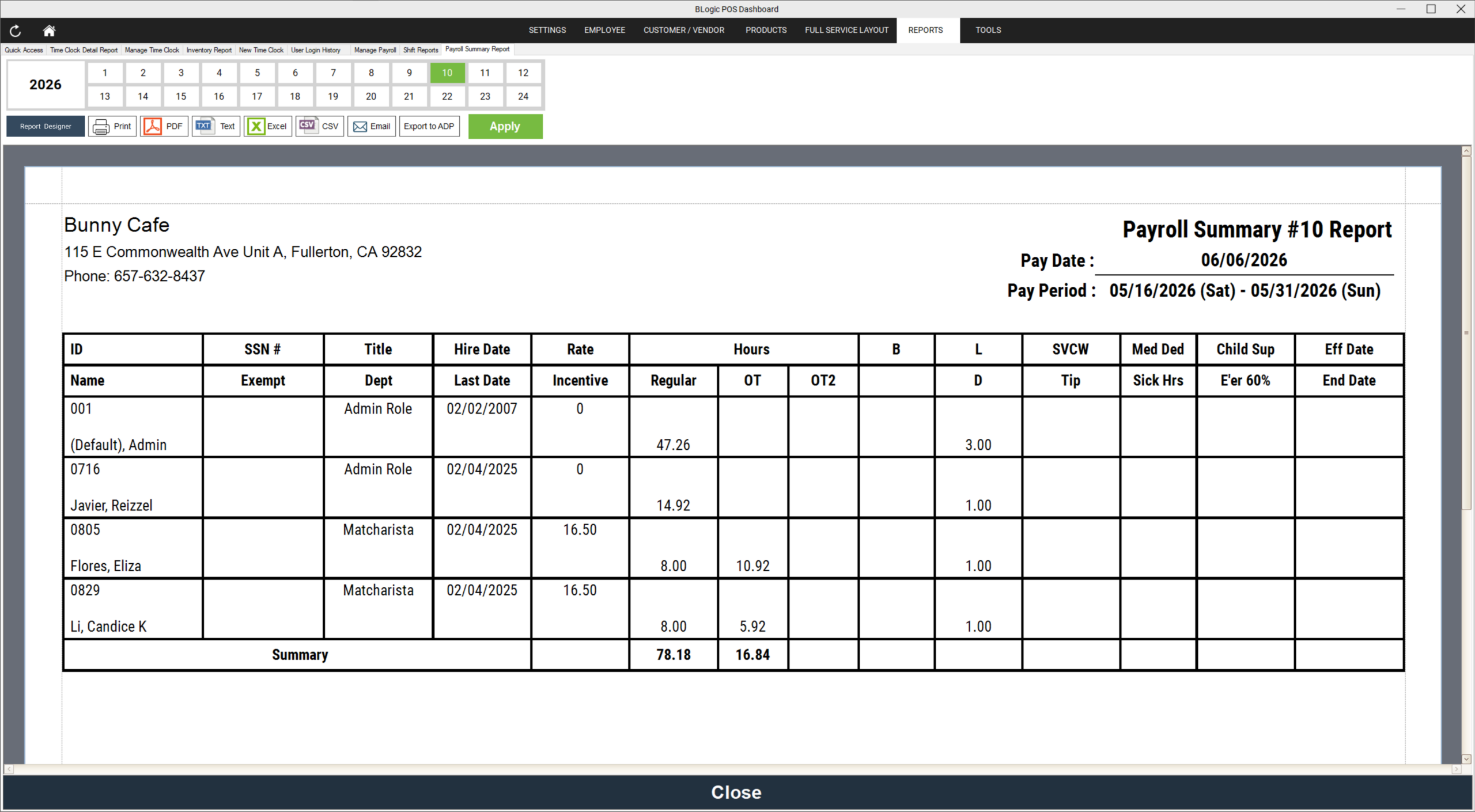
- Go to Reports > Employees > Payroll Summary Reports.
Step 2: Select the pay period
- On the Payroll Summary Report screen, select the pay period you want to export.
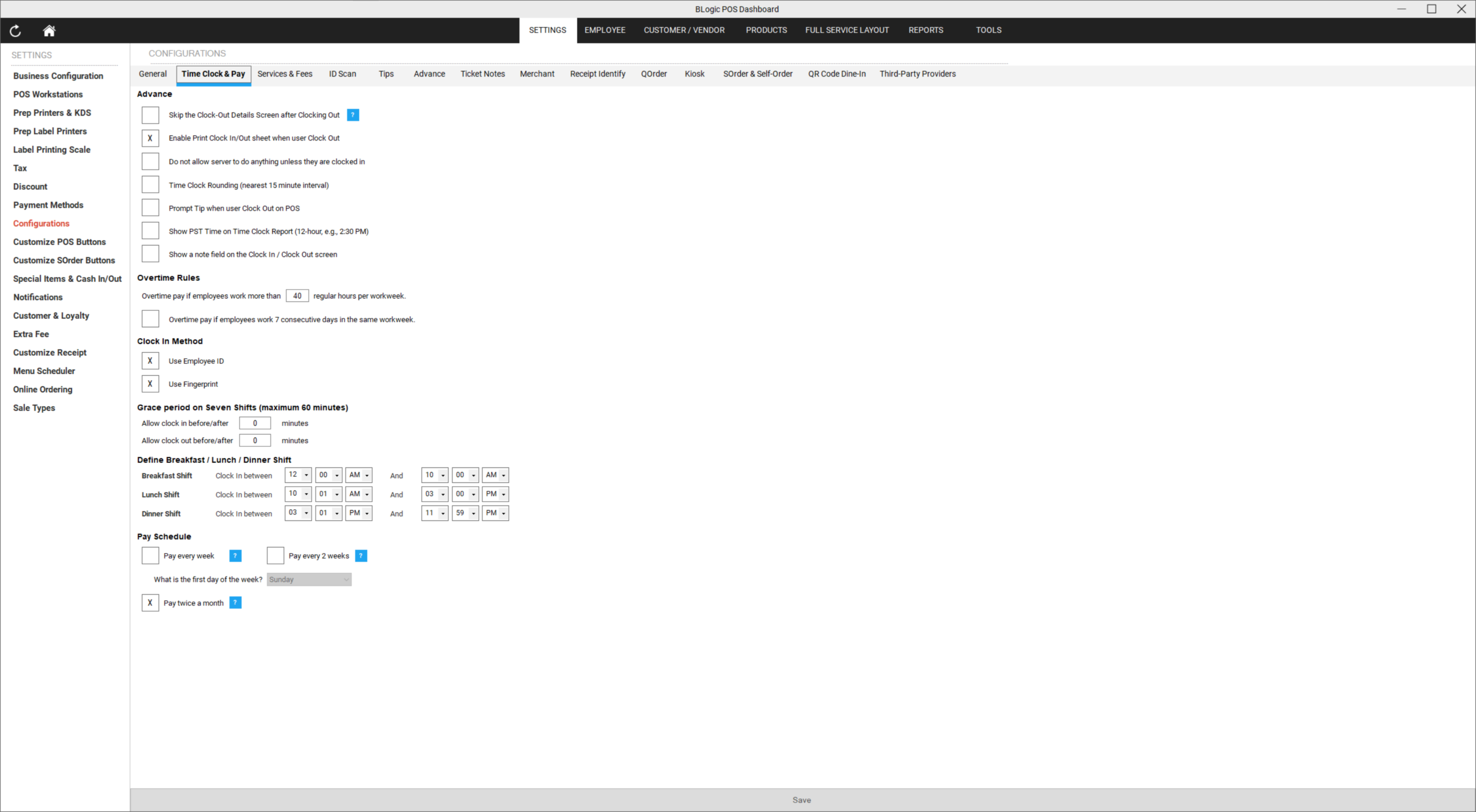
- Make sure your store is configured to use Pay Every 2 Weeks (Pay 2 Weeks) mode for the FLSA Workweek option to apply.
Configure the Report Designer
Step 1: Open the Report Designer
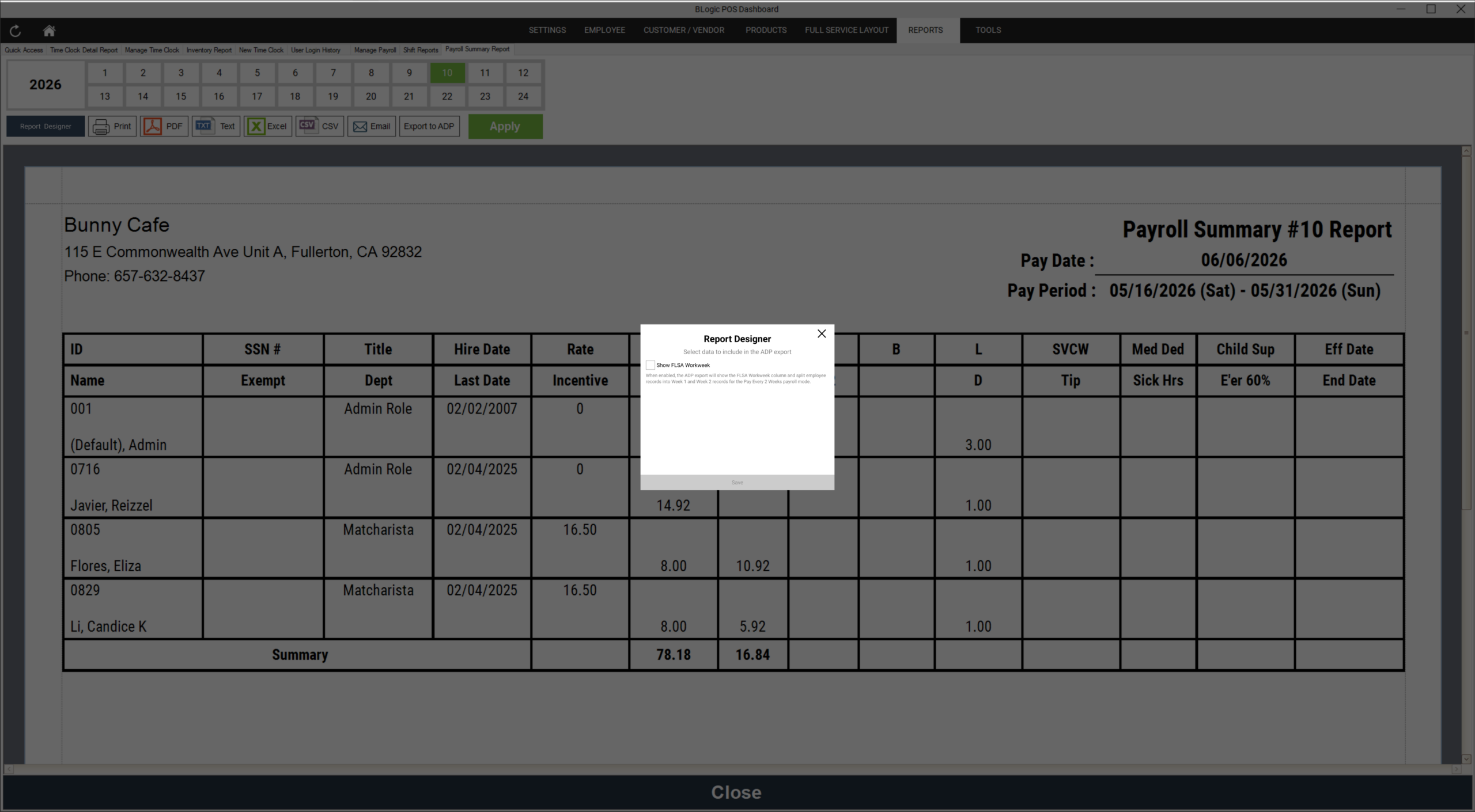
- On the Payroll Summary Report screen, click the Report Designer button.
- The Report Designer popup will open.
Step 2: Enable the Show FLSA Workweek option
- In the Report Designer popup, locate the Show FLSA Workweek option.
- Check the Show FLSA Workweek checkbox to enable it.
- Click Save to apply the setting.
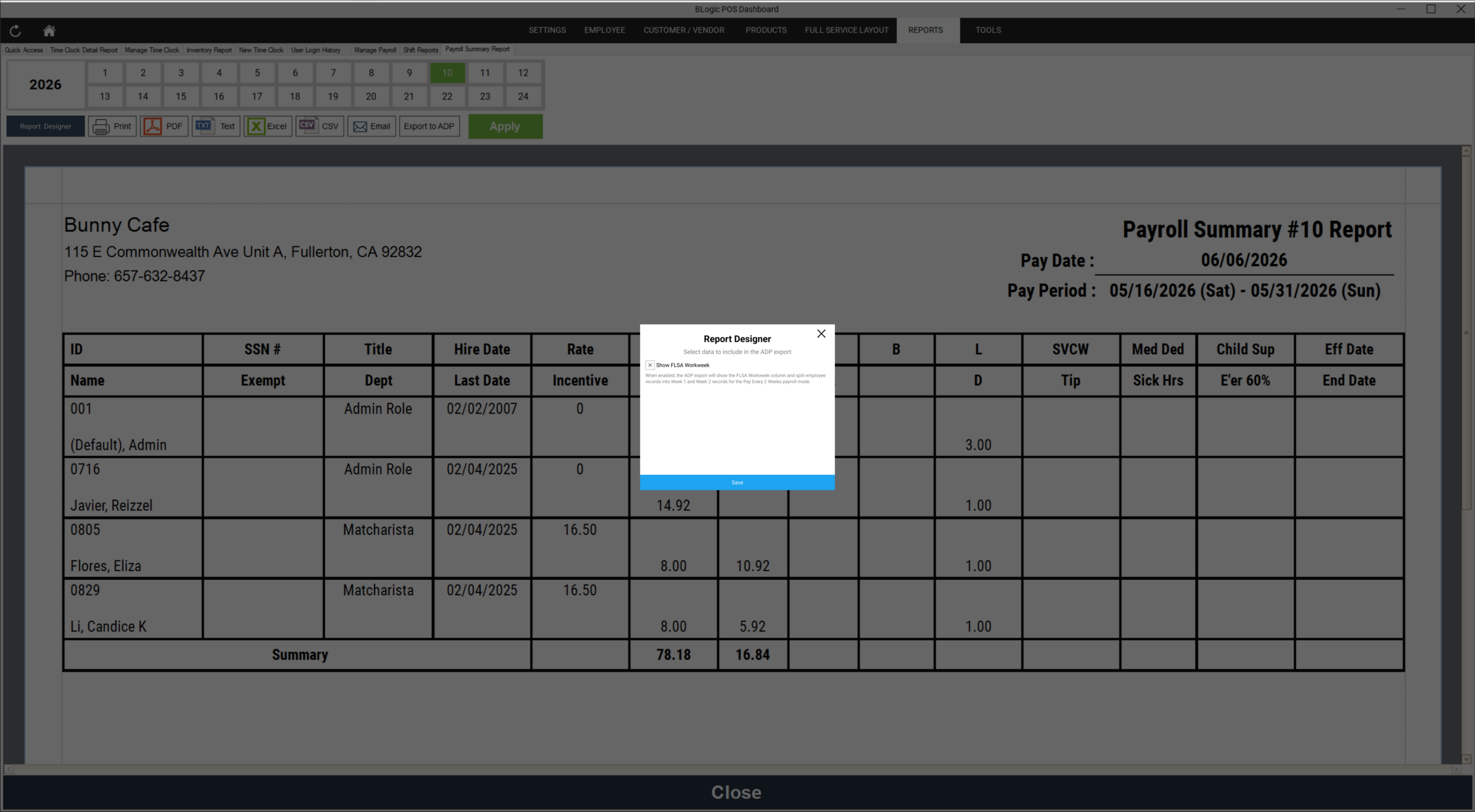
ℹ️ Note: The Show FLSA Workweek option defaults to unchecked. It must be manually enabled each time you need FLSA-split exports.
⚠️ Warning: This option only works with Pay Every 2 Weeks mode. If your store uses a different pay period, enabling this option will not split employee records.
Export to ADP with FLSA Workweek
Step 1: Click Export to ADP
- After saving the Report Designer settings, return to the Payroll Summary Report screen.
- Click Export to ADP to generate the export file.
Step 2: Review the exported file
- Open the downloaded ADP export file.
- When Show FLSA Workweek is enabled, the file will include:
- A new FLSA Workweek column
- Each employee appears as two separate rows — one for Week 1 and one for Week 2
- The following values are split correctly by week for each employee record:
- Regular Hours
- OT1 Hours
- OT2 Hours
- Number of SSP
- SVCW
- Tips

✅ Tip: Verify that the values for Week 1 and Week 2 are not duplicated — each week should only contain that week’s payroll data.
Understand the FLSA Workweek export format
When the Show FLSA Workweek option is enabled and Pay 2 Weeks mode is active:
- FLSA Workweek = 1 → Week 1 record for the employee
- FLSA Workweek = 2 → Week 2 record for the employee
- Each employee will have two rows in the ADP export file instead of one
- Weekly payroll values (hours, tips, etc.) are assigned to the correct week row and are not duplicated
When the option is disabled, the ADP export keeps the current format — one record per employee for the full pay period.
FAQ
1. Why is the Show FLSA Workweek option not visible? The option appears inside the Report Designer popup. Click the Report Designer button on the Payroll Summary Report screen to access it. If the button is not visible, your store may not be on a supported version — contact Support to confirm.
2. Can I use the FLSA Workweek option if my store uses weekly or semi-monthly pay periods? No. The Show FLSA Workweek option only applies to Pay Every 2 Weeks mode. If a different pay period is used, the export will not split employee records even if the option is enabled.
3. Will enabling this option affect the Payroll Summary Report preview on screen? No. The FLSA Workweek option only affects the Export to ADP file. The on-screen Payroll Summary Report layout remains unchanged.
4. What should I do if the ADP export file looks incorrect after enabling FLSA Workweek? Check that your store is using Pay Every 2 Weeks mode and that the Show FLSA Workweek checkbox is saved in Report Designer. If the issue persists, contact Support for further assistance.
Closing
If you still need help with the FLSA Workweek option or ADP payroll export, please contact Support for further assistance.