Introduction
This article explains how to enable the Quick Checkout feature for your Online Ordering store. When turned on, customers skip the “Confirm Your Order Details” step and go directly to the Checkout page — making the ordering process faster and more streamlined. This setting applies to both Pickup and Delivery orders.
Version Support
| Product / Module | Supported Version |
|---|---|
| Online Ordering | 06.19.2026 |
| BLogic View (Dashboard) |
Note: If you do not see this option, please contact Support to confirm your store is on a supported version.
Table of Contents
- What Is Quick Checkout?
- Enable Quick Checkout in BLogic View
- How the Customer Experience Changes
- FAQ
What Is Quick Checkout?
By default, when a customer clicks Checkout on the Order page, a “Confirm Your Order Details” modal appears — showing a map, pickup/delivery address, and scheduled time. The customer must click Continue before reaching the Checkout form.
With Quick Checkout enabled, this confirmation step is removed. Customers go from the Order page directly to the Checkout form in one click.
| Setting | Customer Flow |
|---|---|
| Quick Checkout OFF (default) | Order page → Confirm Order Details modal → Checkout form |
| Quick Checkout ON | Order page → Checkout form (modal skipped) |
ℹ️ Note: Your pickup/delivery time calculation remains unchanged. The estimated time is still calculated and displayed correctly on the Checkout page.
Enable Quick Checkout in BLogic View
Step 1: Log in to BLogic View
- Go to your BLogic View dashboard.
- Log in with your Owner or Admin account.
Step 2: Navigate to Configurations
- In the left sidebar, click Setup.
- Select Configurations from the submenu.
Step 3: Open the Online Ordering Tab
- On the Configurations page, click the Online Ordering tab on the left panel.
Step 4: Enable Quick Checkout
- Scroll down to the Checkout section.
- Find the toggle labeled “Enable Quick Checkout”.
- Toggle it ON.
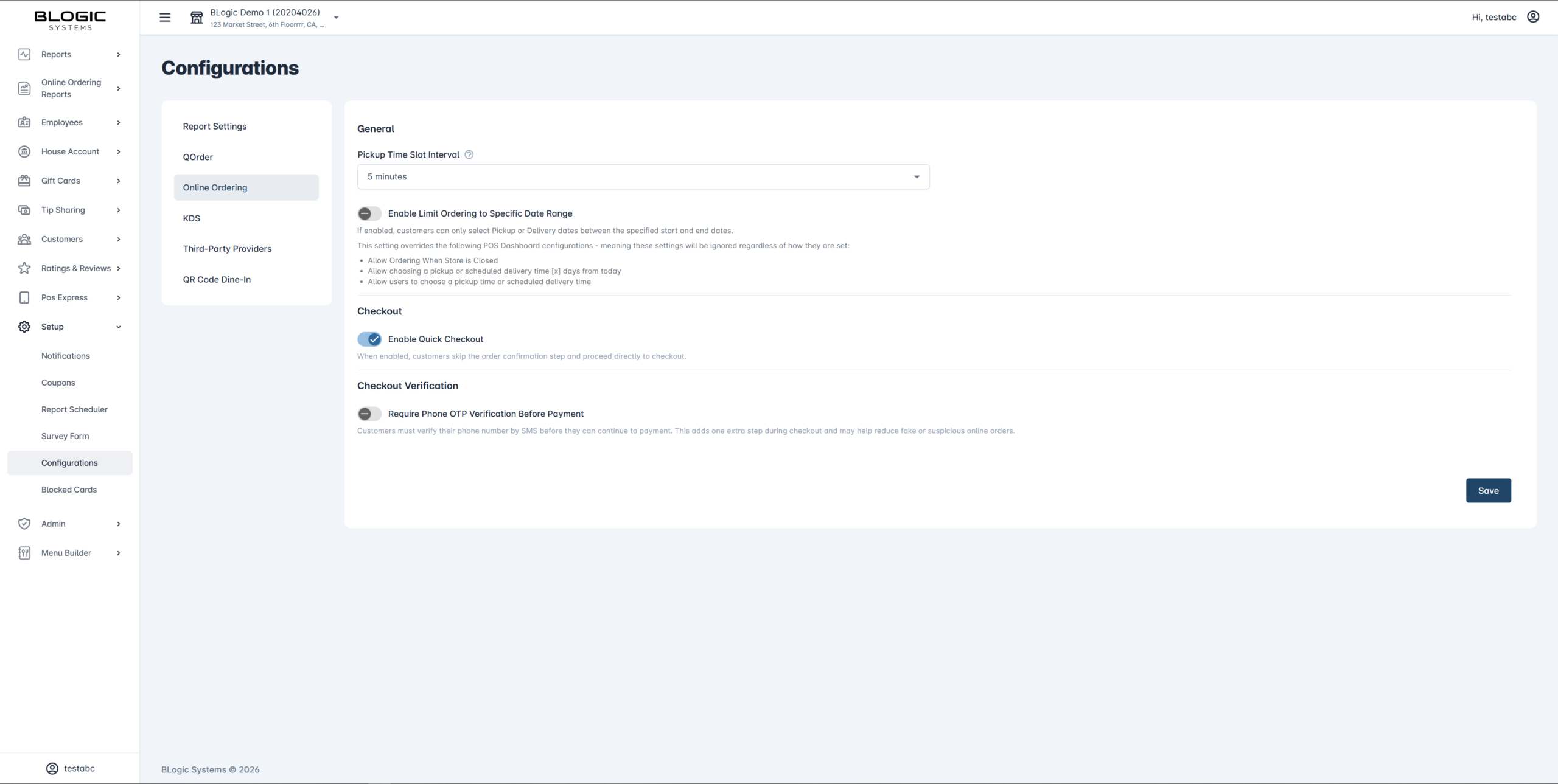
ℹ️ Note: The toggle is OFF by default, so existing customer behavior is preserved until you actively enable it.
Step 5: Save Your Changes
- Click the Save button at the bottom-right of the page.
- The setting is now active for all customers placing orders at your store.
How the Customer Experience Changes
Once Quick Checkout is enabled, here is how the ordering flow changes for your customers:
Standard Flow (Quick Checkout OFF):
- Customer browses the menu and adds items.
- Customer opens the Order page and clicks Checkout.
- A “Confirm Your Order Details” modal appears (map, address, schedule).
- Customer clicks Continue to proceed.
- Customer reaches the Checkout form to enter contact info and place the order.
Quick Checkout Flow (Quick Checkout ON):
- Customer browses the menu and adds items.
- Customer opens the Order page and clicks Checkout.
- Customer is taken directly to the Checkout form — no confirmation modal.
- Customer enters contact info and places the order.
✅ Tip: This is ideal for in-venue ordering scenarios where the store address is fixed and customers do not need to re-confirm it every time.
FAQ
1. Does Quick Checkout apply to both Pickup and Delivery orders? Yes. When enabled, the confirmation step is skipped for both Pickup and Delivery order types.
2. Will the estimated pickup or delivery time still be shown? Yes. The pickup/delivery time calculation is unchanged. The estimated time will still appear correctly on the Checkout form even when the confirmation step is skipped.
3. What happens if a customer navigates directly to the Checkout URL? Customers who try to access the Checkout page directly via URL (without going through the ordering flow) will be redirected to the Home/Menu page. This applies regardless of whether Quick Checkout is enabled or disabled.
4. If Quick Checkout is ON and the customer clicks Back from the Checkout page, where do they go? They are taken back to the Home/Menu page. Since the confirmation step was skipped, there is no intermediate page to return to.
5. What should I do if the Enable Quick Checkout toggle is not visible? Your store may not be on a supported version yet. Please contact Support to confirm eligibility and request an update.
Closing
If you still need help, please contact our Support team for further assistance.