Introduction
This article shows you how to set your POS to print the Shift Report automatically as soon as a cashier starts a shift. It also explains how to show the names of the staff who started and ended the shift on the report.
This helps managers check the Start Cash amount right at the beginning of the shift, instead of waiting until the end of the day.
Version Support
| Product / Module | Supported Version |
|---|---|
| POS Dashboard | 08.29.2026 or later |
Note: If you do not see this option, please contact Support to confirm your store is on a supported version.
Table of Contents
Turn On Print Report When Start Shift
Step 1: Open the Shift Report designer
- Log in to your Back Office.
- Go to Report > Shift Report > Report Designer.
- Select Shift Report.
Step 2: Enable the setting
- Find the setting Print report when Start Shift.
- Turn the setting ON.
- Save your changes.
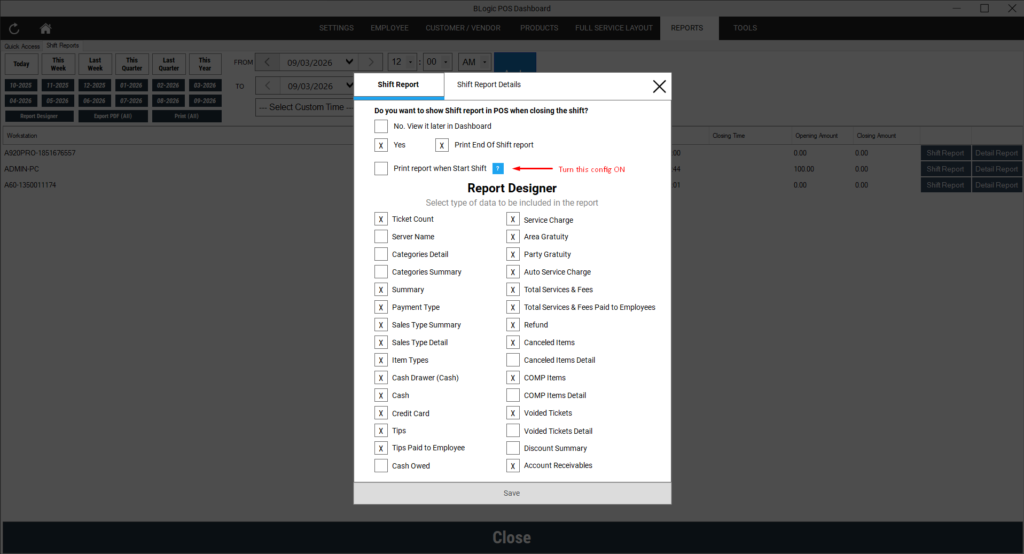
ℹ️ Note: This setting is OFF by default, so each store must turn it on manually.
⚠️ Warning: This setting only applies when a shift is started manually on POS. The report will not be printed when the shift is started automatically by the system (auto start shift).
Show Who Started and Ended the Shift
The Shift Report can also show the name of the staff who started the shift and the staff who ended it. The names appear right below the shift time line on the report.
Step 1: Turn on the staff name display
- In the same Shift Report designer screen, find the Server Name setting.
- Turn it ON to show the names, or OFF to hide them.
- Save your changes.
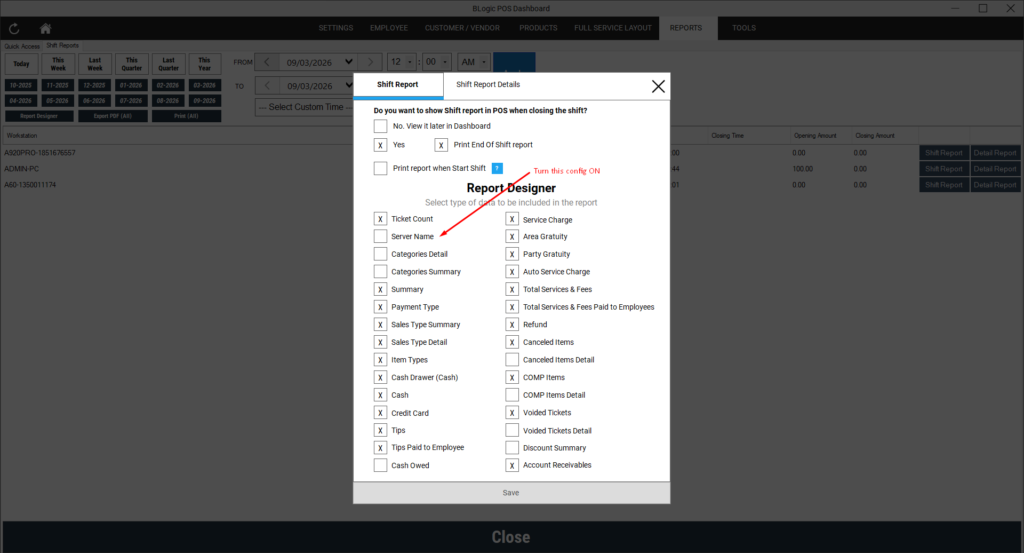
Notes on how the names are displayed:
- The names appear in both Shift Report modes — Detail and Summary.
- If the shift has not been ended yet, the “By:” line for the end-shift staff is hidden.
Start a Shift on POS
Step 1: Start the shift
- On the POS, start a new shift as usual.
- Enter the Start Cash amount.
- Confirm to start the shift.
Step 2: Check the printed report
- The Shift Report is printed automatically right after the shift starts.
- Check the printed report for the Start Cash amount and the name of the staff who started the shift.
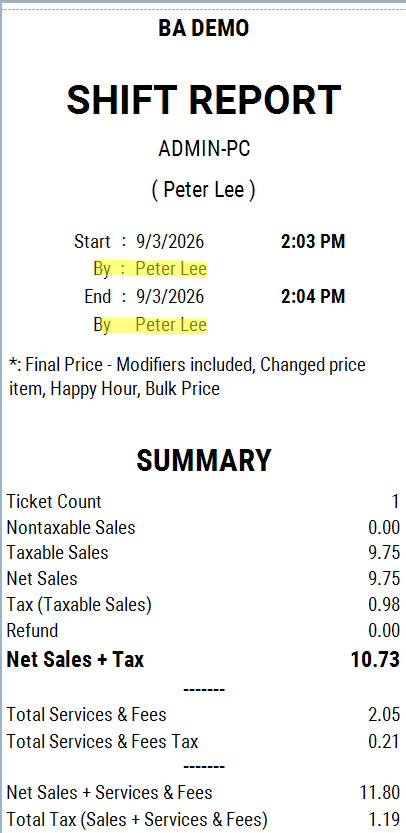
✅ Tip: Keep the printed report at the counter so the manager can compare the recorded Start Cash with the actual cash in the drawer at the beginning of the shift.
FAQ
1. Why can’t I see this option? You may not be on a supported version, or your user role may not have permission to open the Report Designer. Please contact Support if the option is not visible.
2. The shift started but nothing was printed. Why? Most likely the shift was started automatically by the system. This setting only applies to shifts started manually on POS. Also check that Print report when Start Shift is turned ON and that your printer is connected and working.
3. Does this setting affect the report printed at End Shift? No. The End Shift report continues to print as before. This setting only adds an extra printout at the start of the shift.
Closing
If you still need help, please contact Support for further assistance.