Introduction
This article explains how to track voided payments across your system. You will learn how to turn on the option that asks staff for a reason when they void a payment, how that looks on the POS/QOrder screen, and where to review everything in the Voided Payments report in Blogic View. This helps owners and managers keep a clear record of every voided payment — the amount, who voided it, when, and why — which is important for controlling cash and preventing fraud.
Version Support
| Product / Module | Supported Version |
|---|---|
| POS | 09.17.2026 or later |
| QOrder | 15.4 or later |
Note: If you do not see these options, please contact Support to confirm your store is on a supported version.
Table of Contents
- Turn On “Ask Reason When Void Payment” (Back Office)
- Void a Payment and Select a Reason (POS / QOrder)
- View the Void Payment Report (Blogic View)
- FAQ
Turn On “Ask Reason When Void Payment” (Back Office)
By default, this option is OFF. When it is OFF, a voided payment is still recorded with the reason “Void payment” and still appears on the report — staff are simply not asked to choose a reason. Turn it ON if you want staff to select a specific reason each time they void a payment.
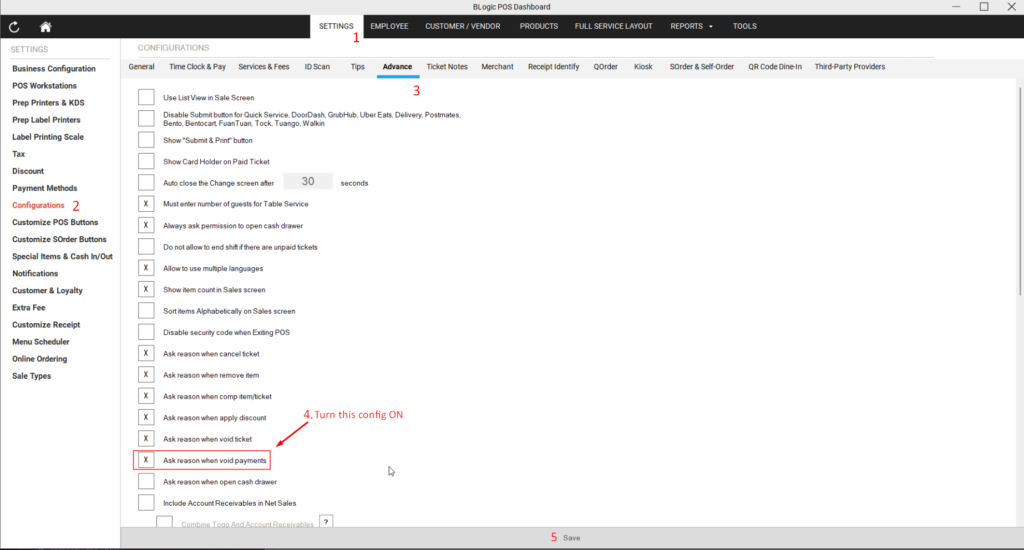
Step 1: Open the setting
- Log in to your Back Office.
- Go to the void/payment settings and find Ask reason when Void Payment.
- Turn the setting ON.
Step 2: Review the Void Payment reason list
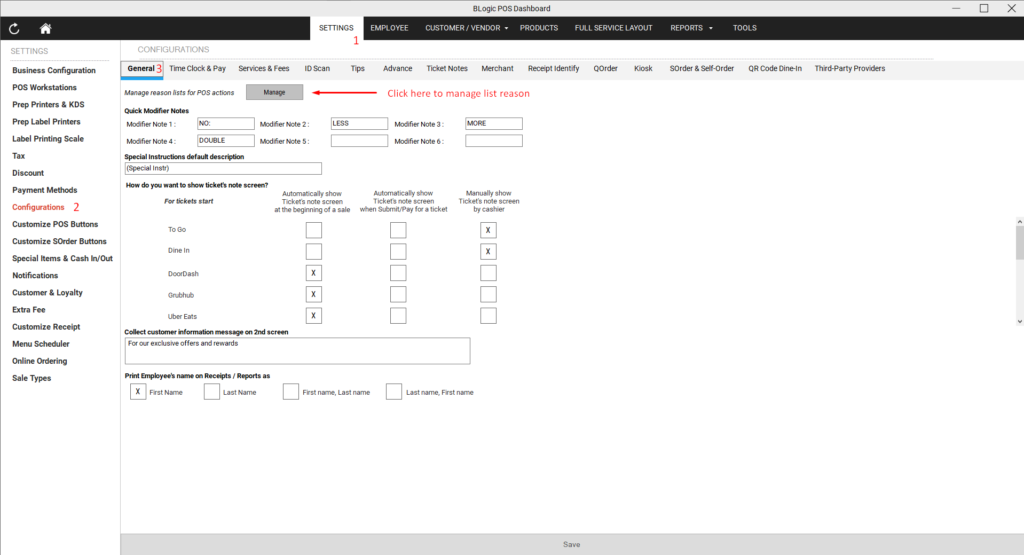
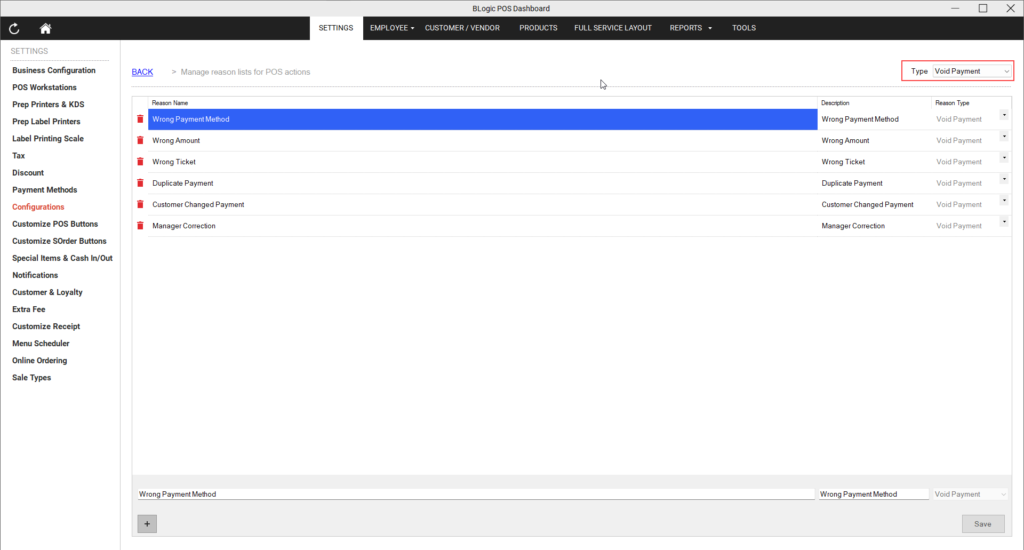
- In Back Office, open the reason list and find the reason type Void Payment (located right under Void Ticket).
- By default it includes these reasons:
- Wrong Payment Method
- Wrong Amount
- Wrong Ticket
- Duplicate Payment
- Customer Changed Payment
- Manager Correction
- Adjust the list if needed so it matches how your store works.
✅ Tip: Keep the reason names short and clear so staff can pick the right one quickly.
Void a Payment and Select a Reason (POS / QOrder)
This is how staff void a payment once the setting above is ON. The flow works the same way as voiding a ticket.
Step 1: Void the payment
- Open the ticket or payment you need to void.
- Choose Void Payment.
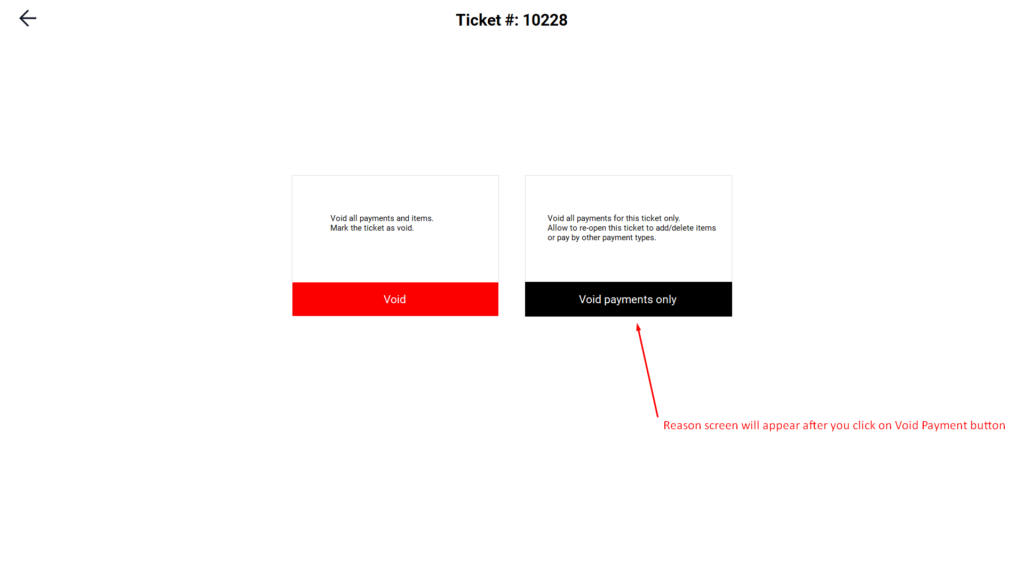
Step 2: Select a reason
- When the reason screen appears, select the reason that matches the situation.
- Confirm to complete the void.
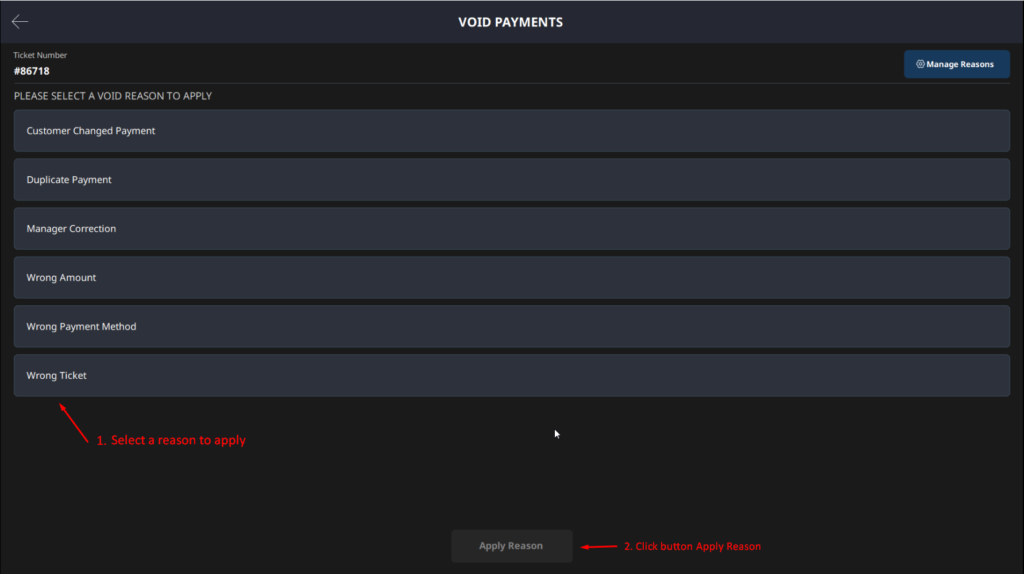
ℹ️ Note: If Ask reason when Void Payment is OFF, this reason screen does not appear. The system still records the void with the reason “Void payment” so it can be reviewed later on the report.
View the Void Payment Report (Blogic View)
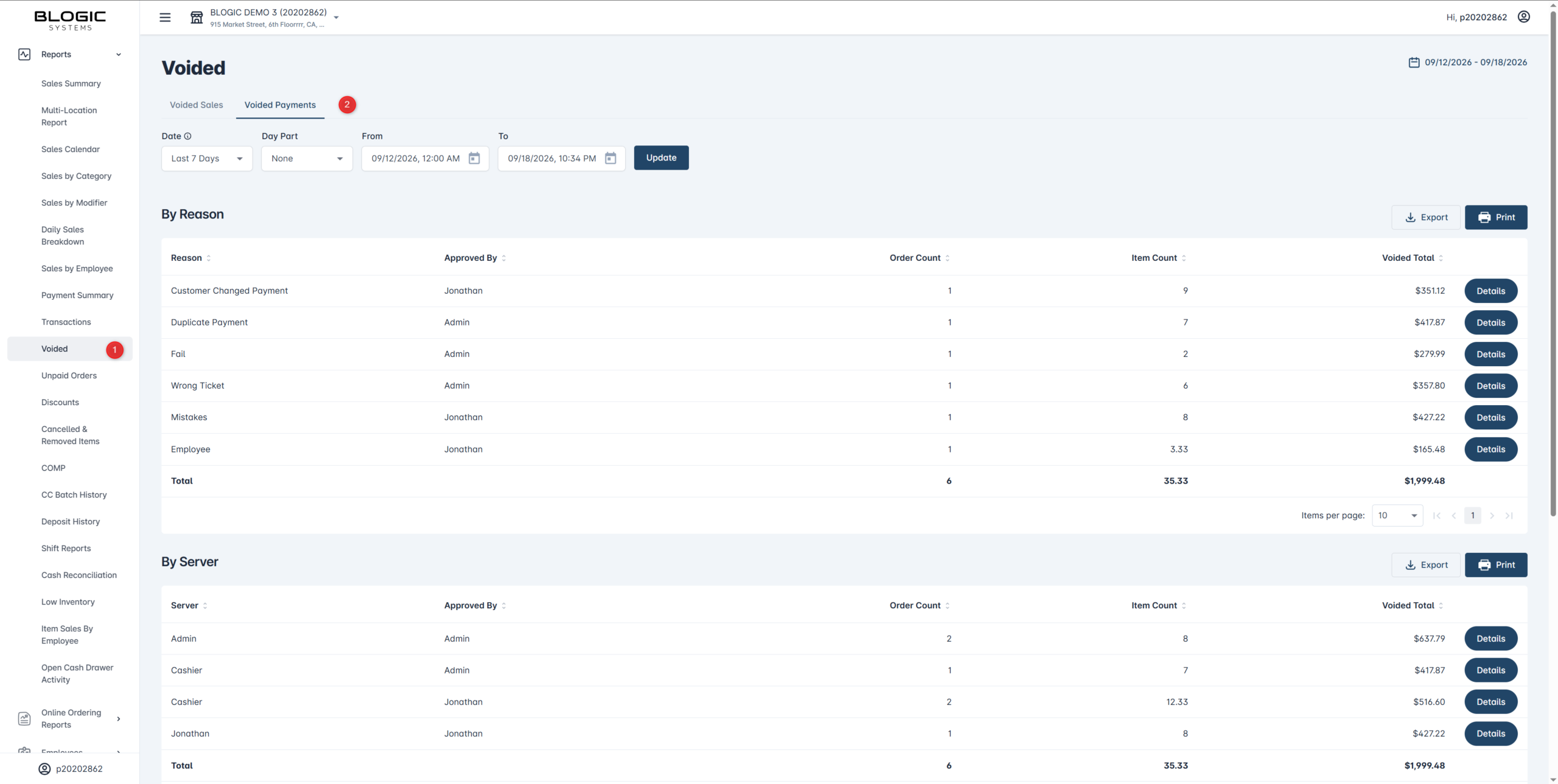
Voided information now appears under two tabs: Voided Sales and Voided Payments. Use the Voided Payments tab to review payments that were voided.
Step 1: Open the Voided report
- Log in to Blogic View.
- Open the Voided report.
- Select the Voided Payments tab.
Step 2: Read the report
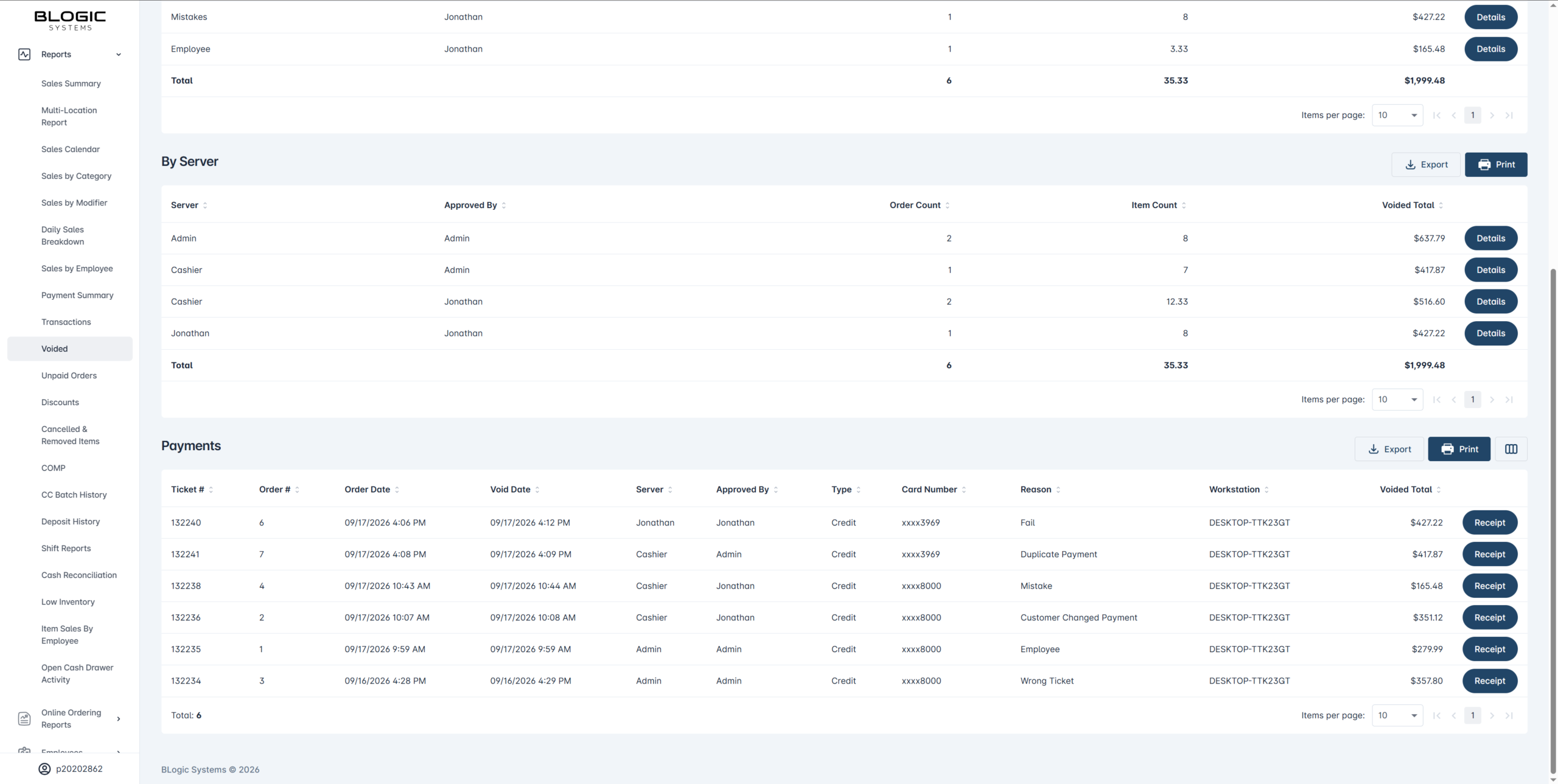
- Review the voided payments across these sections:
- By Reason — voided payments grouped by the reason selected
- By Server — voided payments grouped by the staff member who voided them
- Payments — the detailed list of each voided payment
- The detail typically shows the payment, amount, who voided it, when it was voided, and the reason.
Step 3: Filter, export, or print
- Use the Filter to narrow the report (for example, by date).
- Use Export or Print to save or share the results.
✅ Tip: Reviewing the By Server section regularly makes it easier to spot unusual voiding activity.
FAQ
1. Why can’t I see the Voided Payments tab or the setting? You may not be on a supported version, or your user role may not have permission. Please contact Support if the option is not visible.
2. If I leave “Ask reason when Void Payment” OFF, will voids still be recorded? Yes. The void is still recorded with the reason “Void payment” and still appears on the report. Staff are just not asked to pick a reason.
3. Is a voided payment the same as a voided ticket? No. Voided tickets appear under the Voided Sales tab, and voided payments appear under the Voided Payments tab. They are tracked separately.
4. Can I change the list of void payment reasons? Yes. The Void Payment reason type in Back Office comes with default reasons that you can adjust to fit your store.
5. Does this work on both POS and QOrder? Yes, the ask-reason flow is available on both POS and QOrder. (Blogic Connector / B1 was not included at the time of this feature — please confirm with Support.)
Closing
If you still need help, please contact Support for further assistance.