Introduction
This article explains how to show the customer’s card holder on open (unpaid) tickets in POS and QOrder. The name comes from the card used for a pre-authorization, so staff can quickly tell open tabs apart by customer name instead of remembering table numbers. This is especially useful for bars and restaurants that run bar tabs.
Version Support
| Product / Module | Supported Version |
|---|---|
| POS | 09.24.2026 or later |
| QOrder | 15.5 or later |
Note: If you do not see this option, please contact Support to confirm your store is on a supported version.
Table of Contents
- Before You Begin
- Show Card Holder on the POS Unpaid Tickets Screen
- Show Card Holder on the POS Table Layout
- Show Card Holder on the QOrder Table Layout
- FAQ
Before You Begin
The card holder name is shown only when a ticket has a successful pre-authorization. If a ticket has no pre-auth, there is no name to display.
Show Card Holder on the POS Unpaid Tickets Screen
Step 1: Turn on the setting in Back Office
- Log in to Back Office.
- Go to Settings > Configurations > Advance.
- Find Show Card Holder on Unpaid Ticket.
- Turn the setting ON, then save your changes.
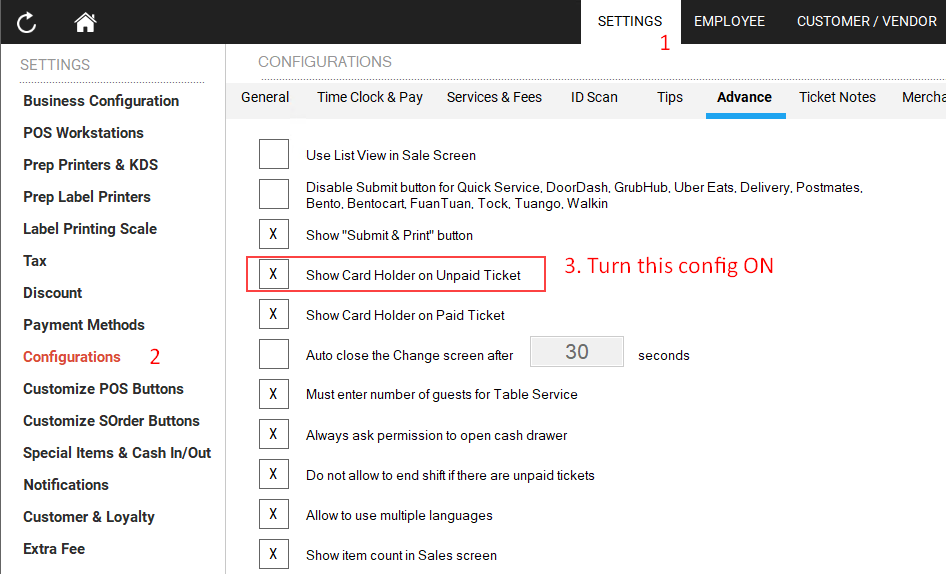
ℹ️ Note: This setting is OFF by default. When it is off, the Unpaid Tickets screen works the same as before.
Step 2: Check the Unpaid Tickets screen on POS
- On POS, open a ticket and run a pre-auth on the customer’s card.
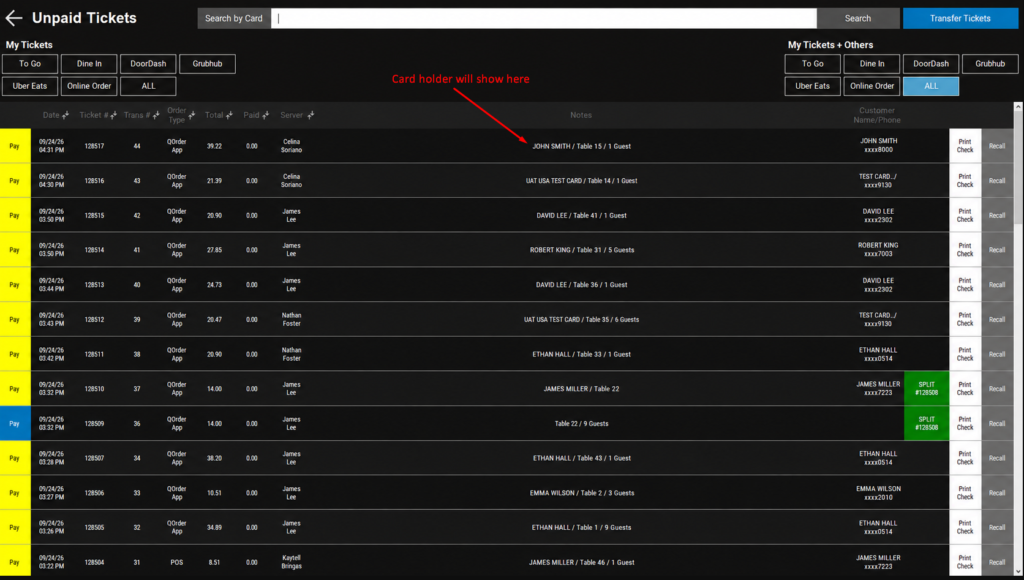
- Go to the Unpaid Tickets screen.
- Look at the Notes column. The card holder name appears at the start, followed by any existing notes, separated by
/.
⚠️ Warning: The card holder name is not printed on Prep Receipts or Label Receipts and is not shown on KDS. These continue to show Ticket Notes only.
Show Card Holder on the POS Table Layout
Step 1: Turn on the setting in Back Office
- Log in to Back Office.
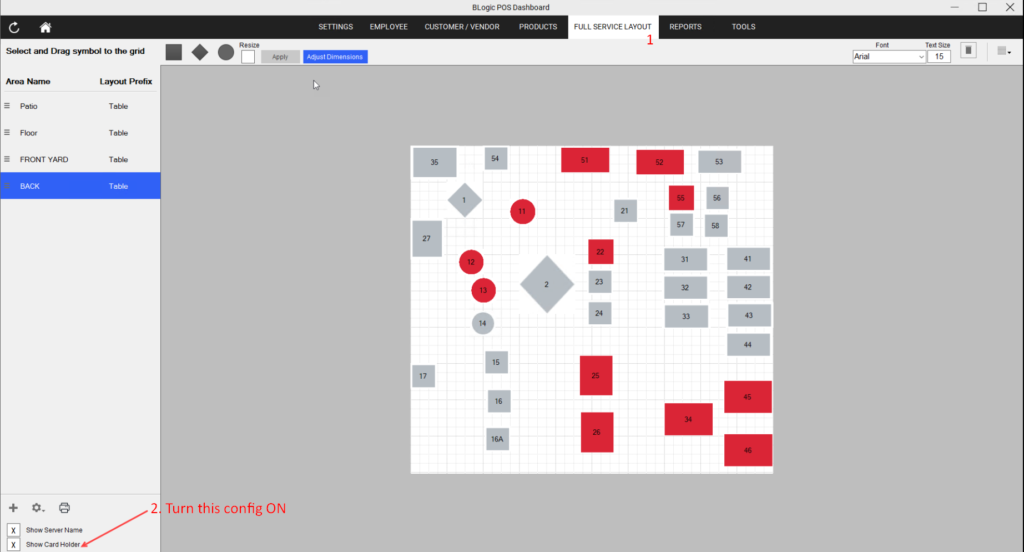
- Go to Full Service Layout.
- At the bottom of the left panel, find the checkboxes under the [+] [⚙] [🖨] buttons.
- Select the Show Card Holder checkbox, then save your changes.
Step 2: Check the table on POS
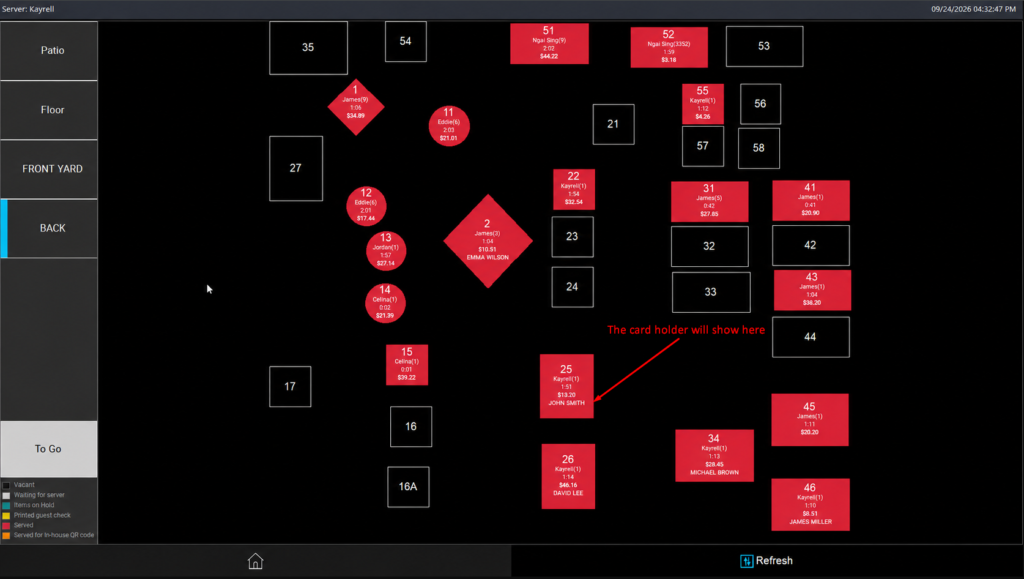
- On POS, open the Table Layout screen.
- Find a table with a pre-authorized ticket.
- The card holder name appears as the last line on the table, after the table number, server, duration, and amount.
How the table display works:
- If the table is too short, the card holder line is hidden.
- If the table is too narrow, the name is shortened with
….
✅ Tip: If names are often cut off or hidden, increase the table size in Full Service Layout.
Show Card Holder on the QOrder Table Layout
Step 1: Turn on the setting in QOrder
- Open QOrder.
- Go to Dine-in > Setting.
- Find Show Card Holder
- Turn the setting ON.
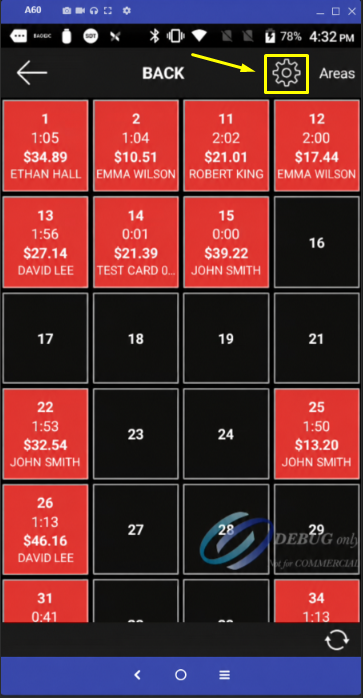
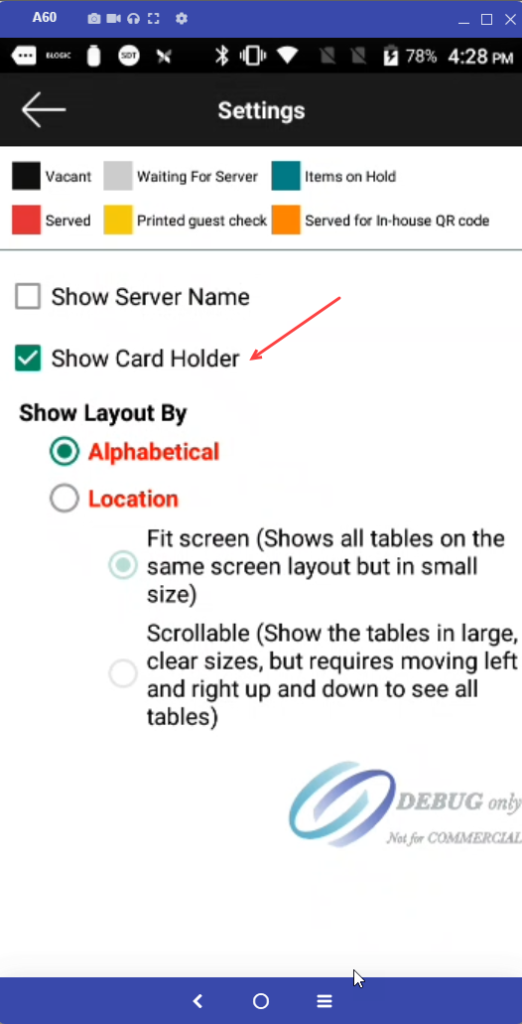
ℹ️ Note: This setting is OFF by default. It is saved on the device, the same way as Show Server Name. If your store uses more than one QOrder device, turn it on for each device.
Step 2: Check the table in QOrder
- Go to the Dine-in table layout.
- Find a table with a pre-authorized ticket.
- The card holder name appears as the last line on the table, after the existing information.
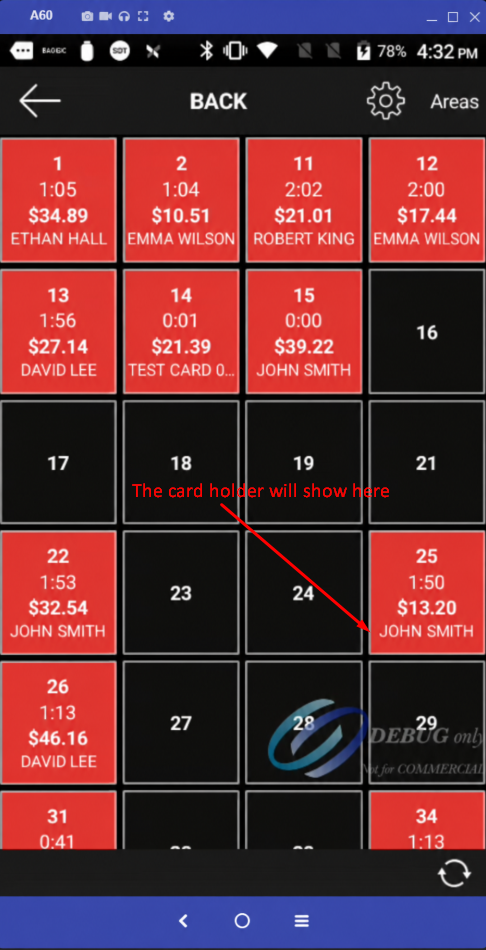
ℹ️ Note: On the QOrder Unpaid Tickets screen, the card holder name is always shown in the Notes column for pre-authorized tickets. No setting is needed.
FAQ
1. Why can’t I see the card holder name on a ticket?
Check that the setting is turned on and that the ticket has a successful pre-auth. If the card was entered manually or could not be read, no name is available. On the table layout, the name may also be hidden if the table is too small.
2. Can staff remove or change the card holder name by editing Ticket Notes?
No. The name is stored separately from Ticket Notes. Editing notes does not affect the name, and the name cannot be deleted through notes.
3. What happens if the customer switches to a different card?
If you pre-authorize a different card, the new card holder name replaces the old one. If you void the pre-auth, the name is removed from the ticket.
4. Will the card holder name print on the kitchen receipt or show on KDS?
No. The name does not appear on Prep Receipts, Label Receipts, or KDS. These continue to show Ticket Notes only.
5. I turned on Show Card Holder on one QOrder device. Why don’t other devices show it?
The QOrder setting is saved on each device. Turn it on for every QOrder device where staff need to see the name.
Closing
If you still need help, please contact Support for further assistance.