Introduction
This article explains how to set up and use the separate COMP/Payout receipt feature on your POS system. You will learn how to enable automatic printing of COMP and Payout items on their own dedicated receipt after payment, and how to reprint it later from the Paid Ticket screen. This feature makes it easier for cashiers and managers to review and track COMP and Payout transactions separately from regular sales.
Version Support
| Product / Module | Supported Version |
|---|---|
| POS | 2026.06.06 or later |
| POS Dashboard | 2026.06.06 or later |
| QOrder | 14.1 or later |
Note: If you do not see this option, please contact Support to confirm your store is on a supported version.
Table of Contents
- Enable Auto Print COMP/Payout Receipt
- How the Separate Receipt Prints Automatically
- Reprint the COMP/Payout Receipt from Paid Ticket
- Where to View or Confirm the Result
- FAQ
Enable Auto Print COMP/Payout Receipt
Step 1: Go to Customize Receipt settings in POS Dashboard
- Log in to your POS Dashboard.
- Go to Settings → Customize Receipt.
- Locate the setting “Auto print COMP/Payout items on separate receipt when payment”.
- Toggle this setting ON.
- Save your changes.
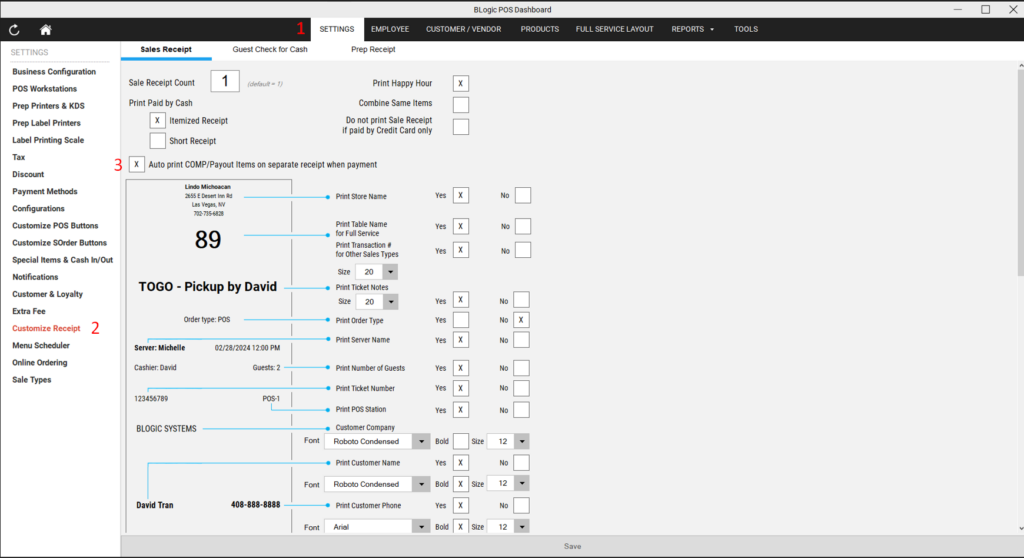
ℹ️ Note: This setting is OFF by default. You must enable it manually if your store wants to print a separate COMP/Payout receipt.
How the Separate Receipt Prints Automatically
Once the setting is enabled, the system will automatically print a separate COMP/Payout receipt each time a ticket containing COMP or Payout items is fully paid.
Key behaviors to know:
- The separate receipt prints immediately after the regular sale receipt, at the moment payment is completed.
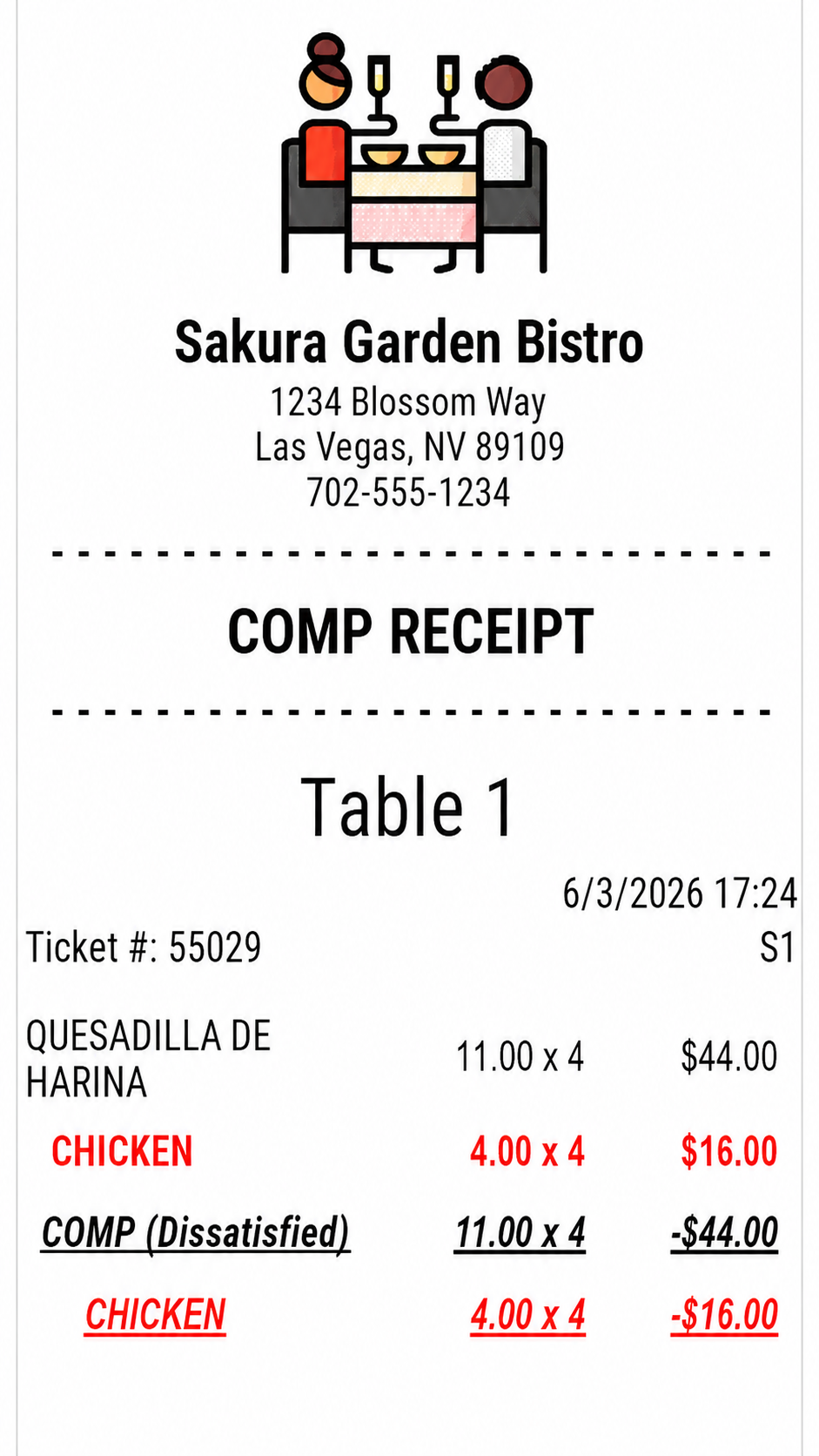
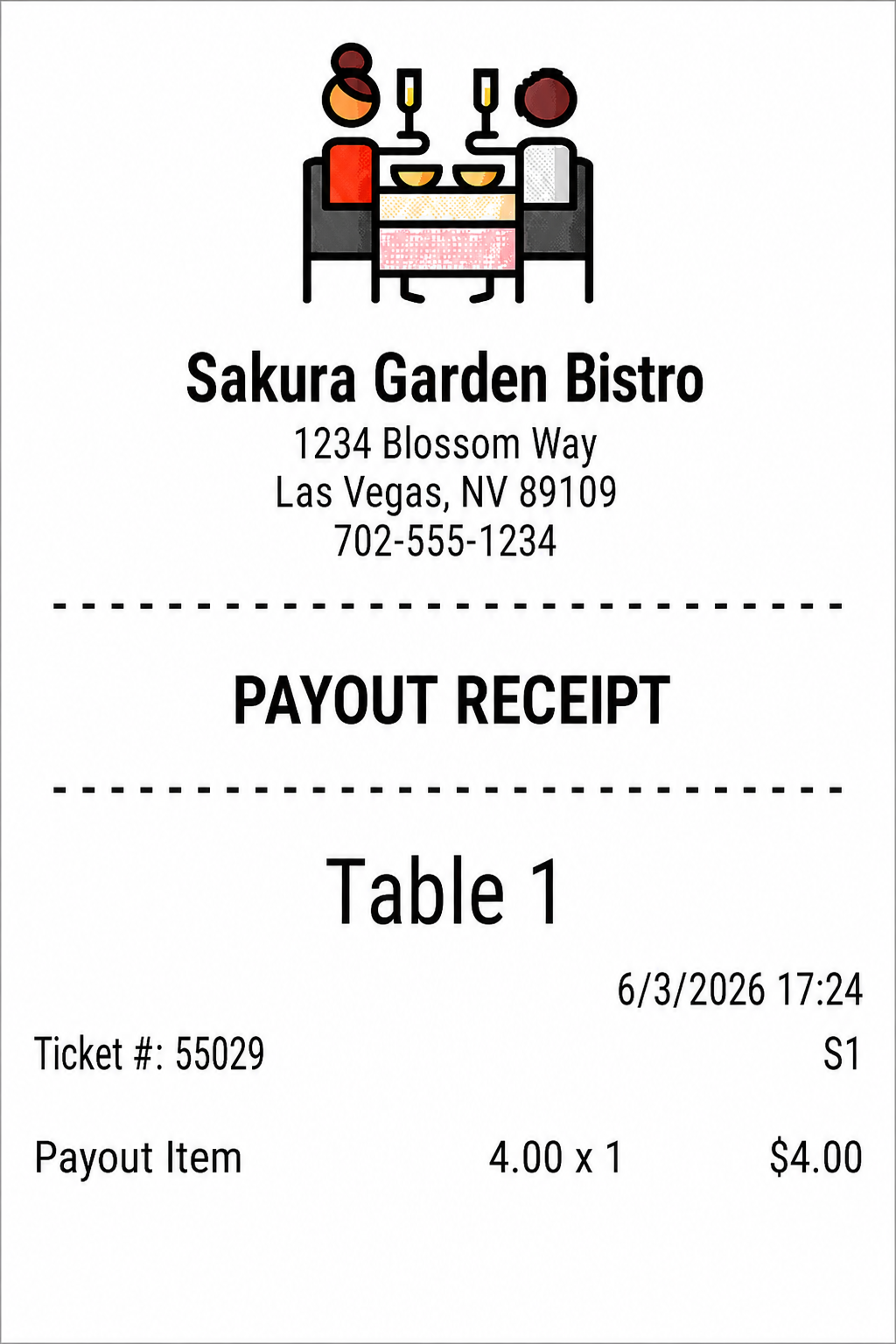
- COMP items and Payout items are printed on separate receipts — COMP items print on a receipt titled “COMP RECEIPT”, and Payout items print on a receipt titled “PAYOUT RECEIPT”.
- If a ticket has no COMP or Payout items, no separate receipt will be printed.
- For tickets paid using Split Evenly or paid in multiple transactions, the separate COMP/Payout receipt prints only once — when the full ticket is completed.
- This receipt is not triggered when using Print or Print Check at other points during the transaction (only at final payment).
- There is no way to print a COMP/Payout receipt before payment. You can reprint it after payment using Paid Ticket (see below).
⚠️ Warning: COMP and Payout items cannot be hidden from the regular sale receipt, as removing them would affect the ticket total. The separate receipt is an additional printout, not a replacement.
Reprint the COMP/Payout Receipt from Paid Ticket
You can manually review and reprint the COMP/Payout receipt at any time after a ticket is paid.
Step 1: Open the Paid Ticket
- On the POS or QOrder app, navigate to Paid Tickets.
- Find and open the ticket you want to review.
Step 2: Reprint the COMP/Payout receipt
- In the Paid Ticket Details screen, locate the Print COMP/Payout Items Receipt button.
- Tap the button to reprint the receipt.
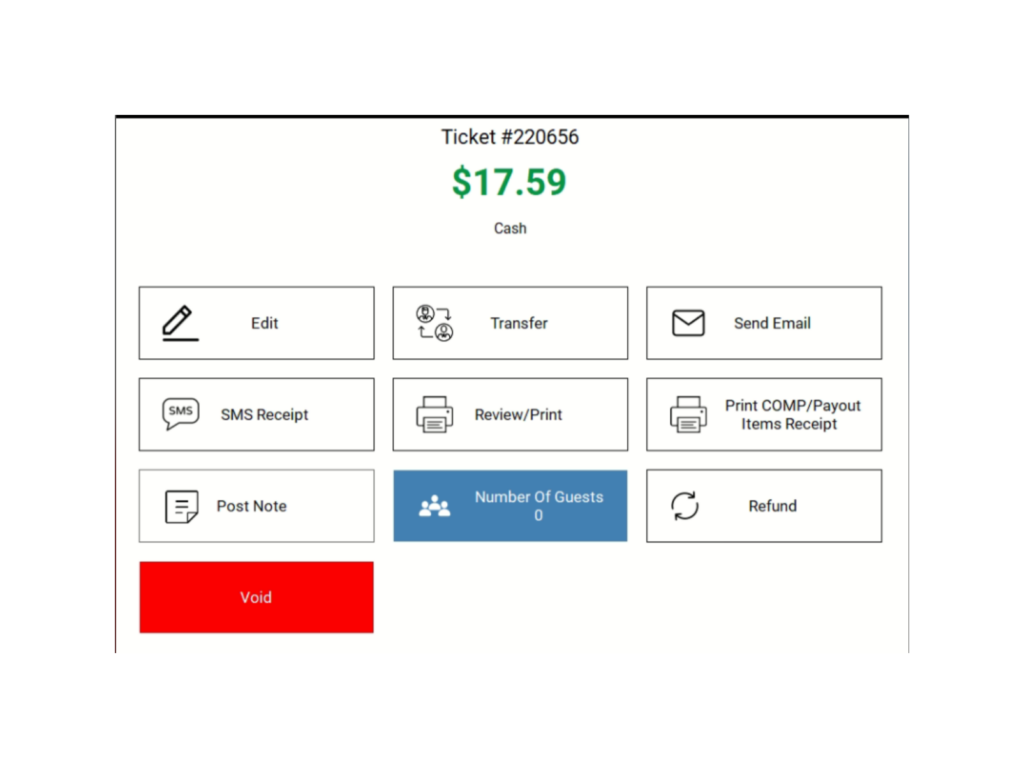
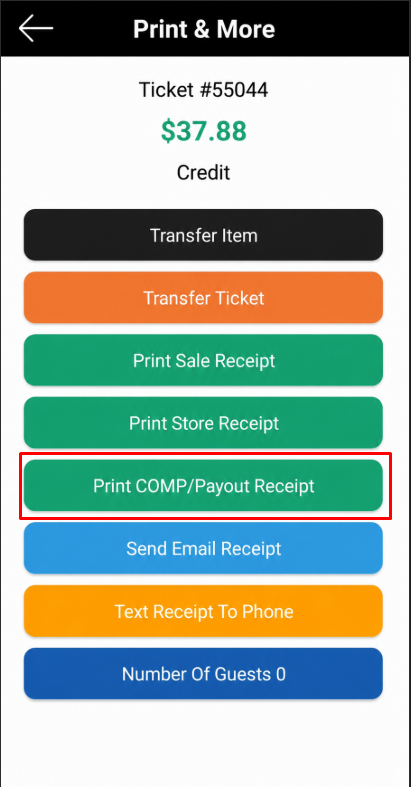
ℹ️ Note: The Print COMP/Payout Receipt button is only visible if the ticket contains at least one COMP or Payout item. It will be hidden for regular tickets with no COMP/Payout items.
Where to View or Confirm the Result
After printing, you can confirm the result in the following places:
- Receipt printout — The separate COMP/Payout receipt will print from the connected receipt printer.
- Paid Ticket Details screen on POS — Use the Print COMP/Payout Receipt button to verify items are recorded.
- POS Dashboard → Customize Receipt — Confirm the toggle is enabled for your store.
FAQ
1. Why can’t I see the “Auto print COMP/Payout” setting in Back Office? You may not be on a supported version, or your user role may not have permission to access Customize Receipt settings. Please contact Support to confirm.
2. Will the COMP/Payout receipt print for every transaction? No. It only prints when the ticket contains at least one COMP or Payout item. Tickets with no COMP/Payout items will not trigger this receipt.
3. What happens if a ticket is paid in multiple splits or installments? The COMP/Payout receipt prints once — only when the full ticket is completely paid. It will not print after each partial payment.
4. Can cashiers print the COMP/Payout receipt before payment is complete? No. The COMP/Payout receipt can only be printed after full payment. After payment, cashiers or managers can reprint it from the Paid Ticket Details screen.
5. What should I do if the COMP/Payout receipt does not print after payment? Check that the “Auto print COMP/Payout items on separate receipt when payment” setting is turned ON in Back Office → Settings → Customize Receipt. Also confirm the ticket contained COMP or Payout items. If the issue continues, contact Support for assistance.
Closing
If you still need help, please contact Support for further assistance.